About Global Rescue

My Global Rescue puts vital medical, security, and rescue resources at your fingertips wherever you are in the world. Our state-of-the-art technology allows you to have face-to-face video consultations with our experts, including critical care paramedics, physicians, and military special operations veterans. Using My Global Rescue gives you 24/7 access to our global operations centers and immediate assistance with your medical and security problems.

Home Screen

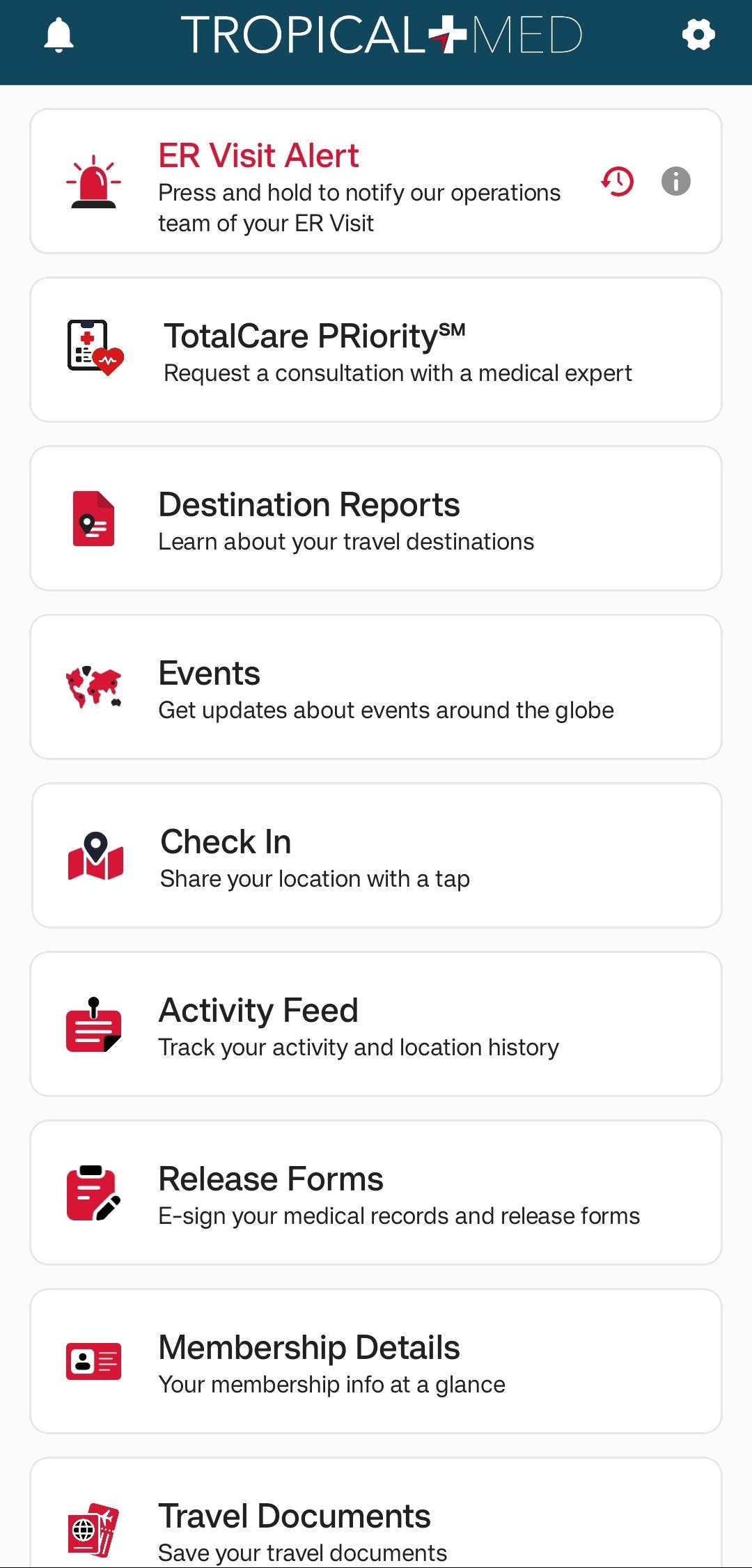
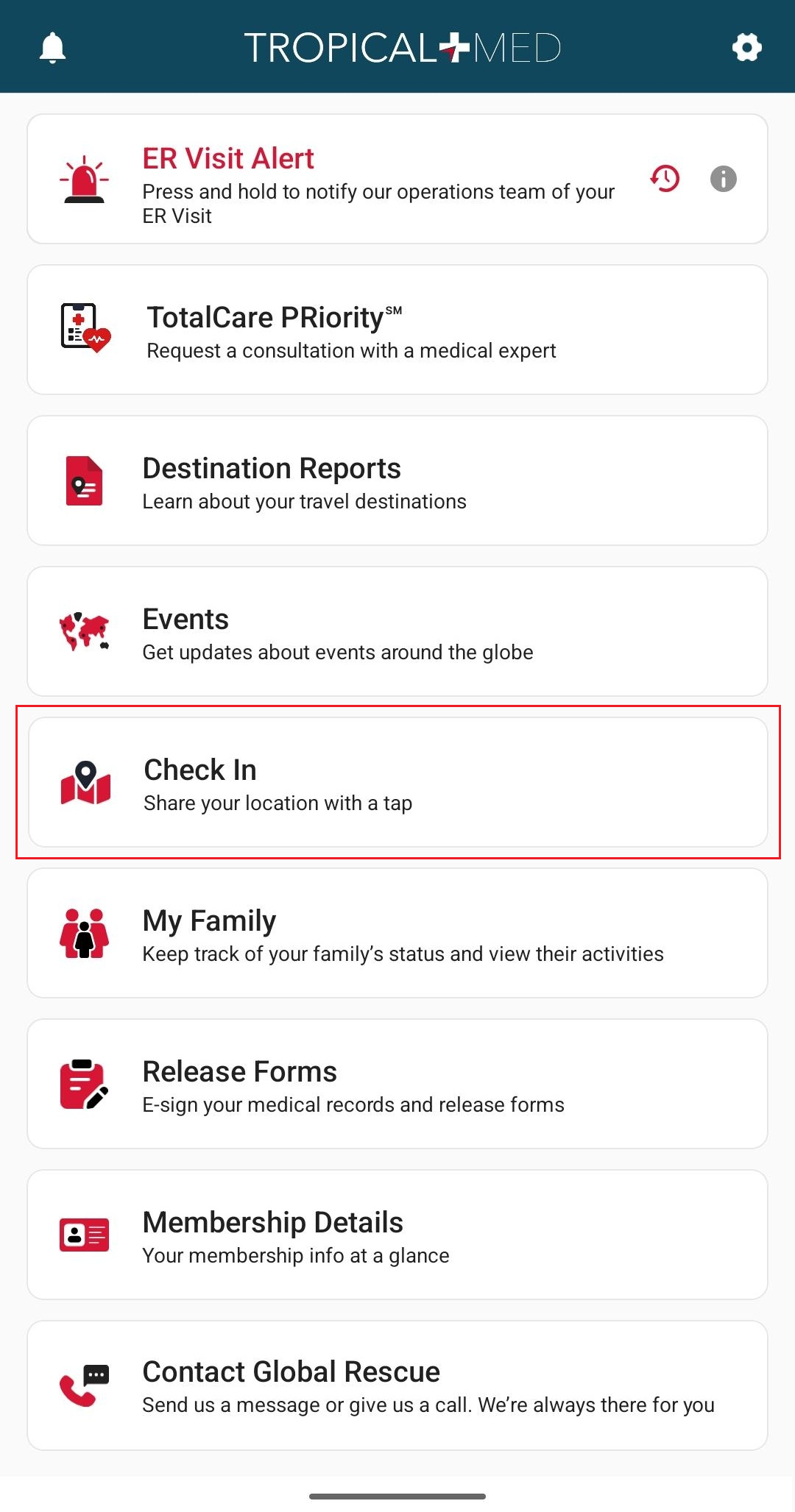
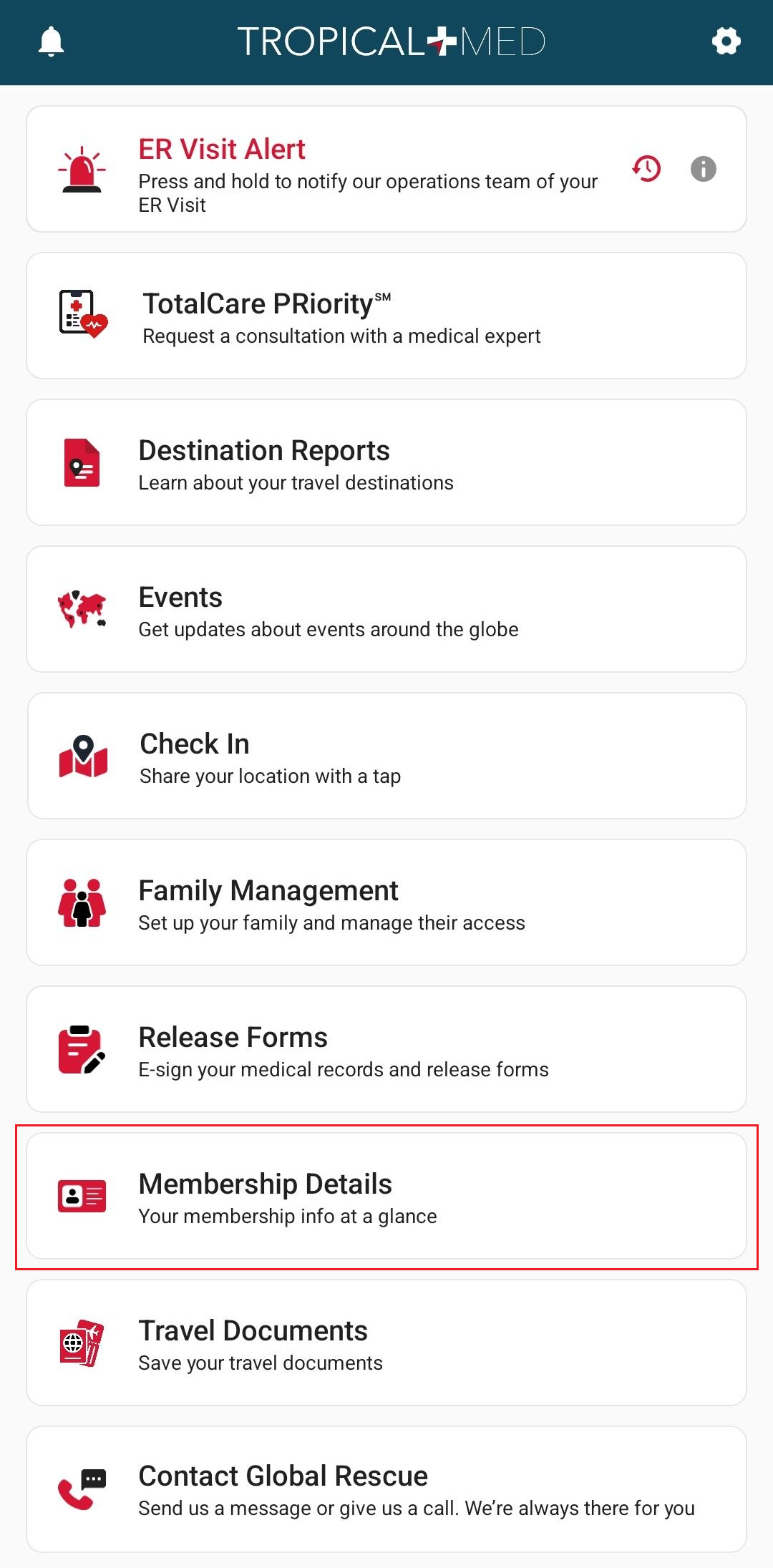
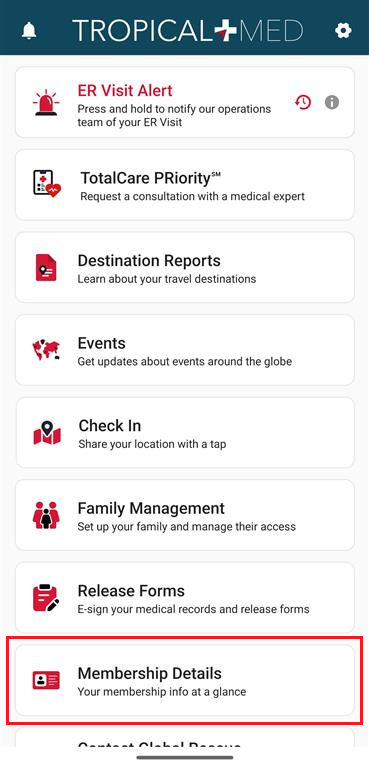
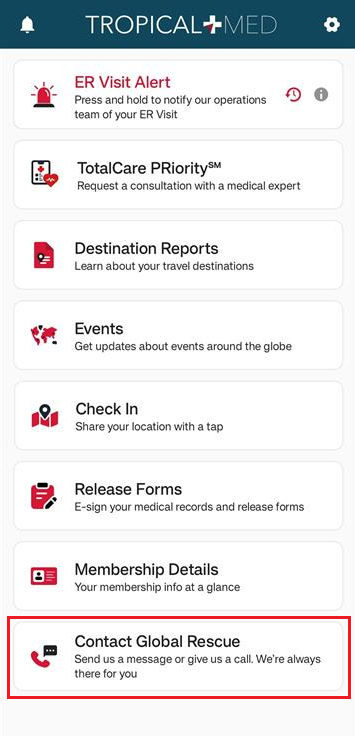
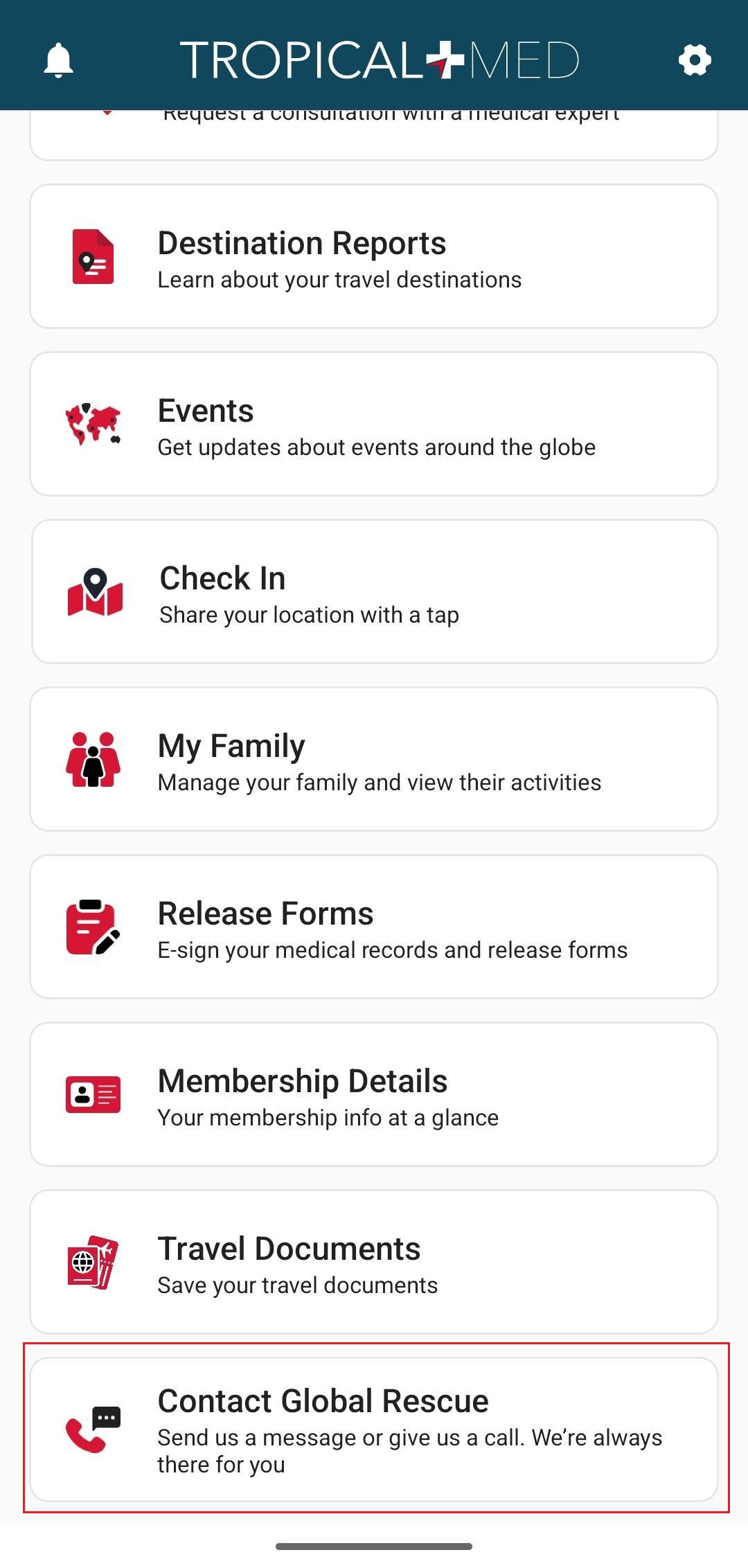
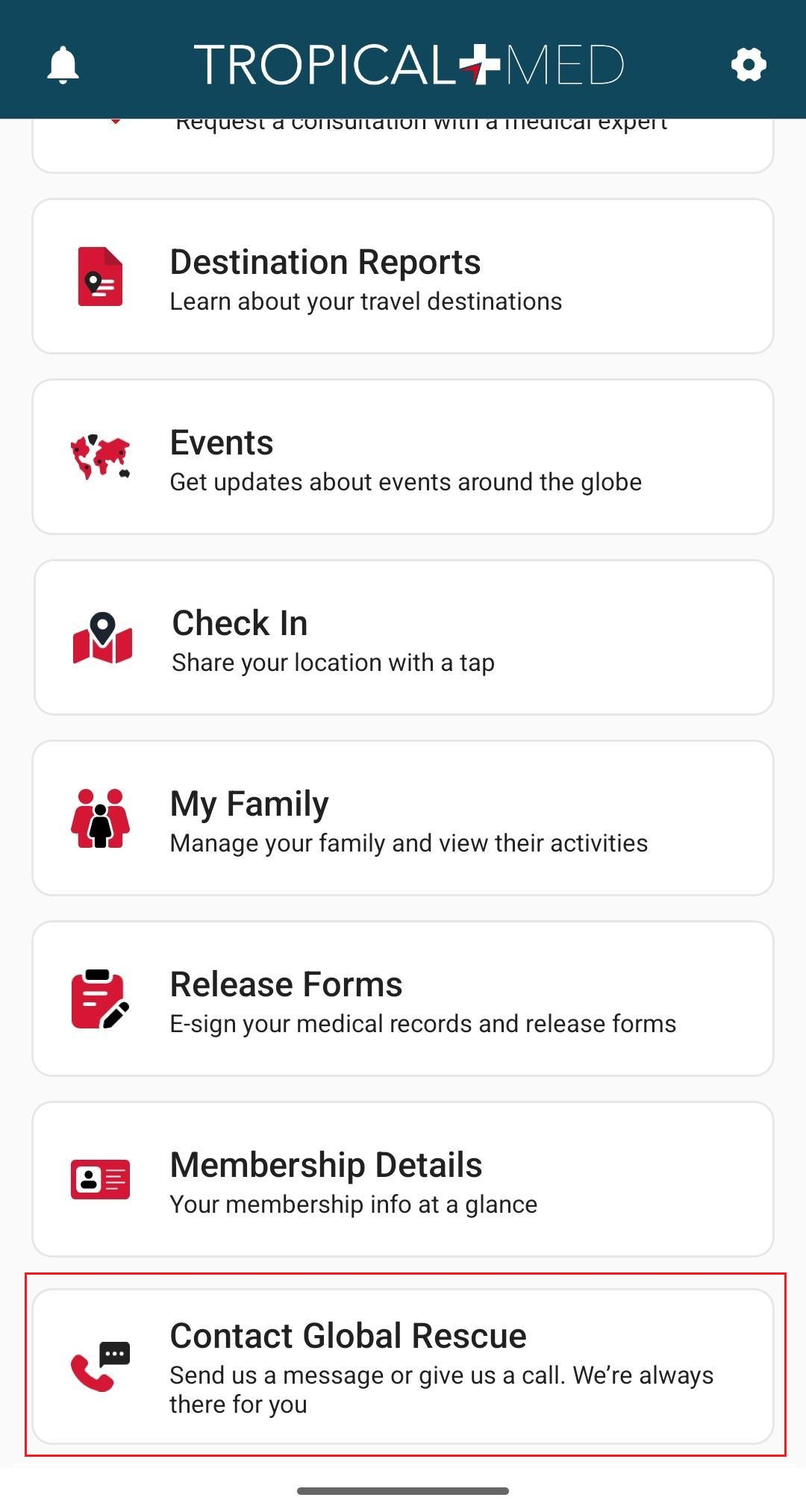
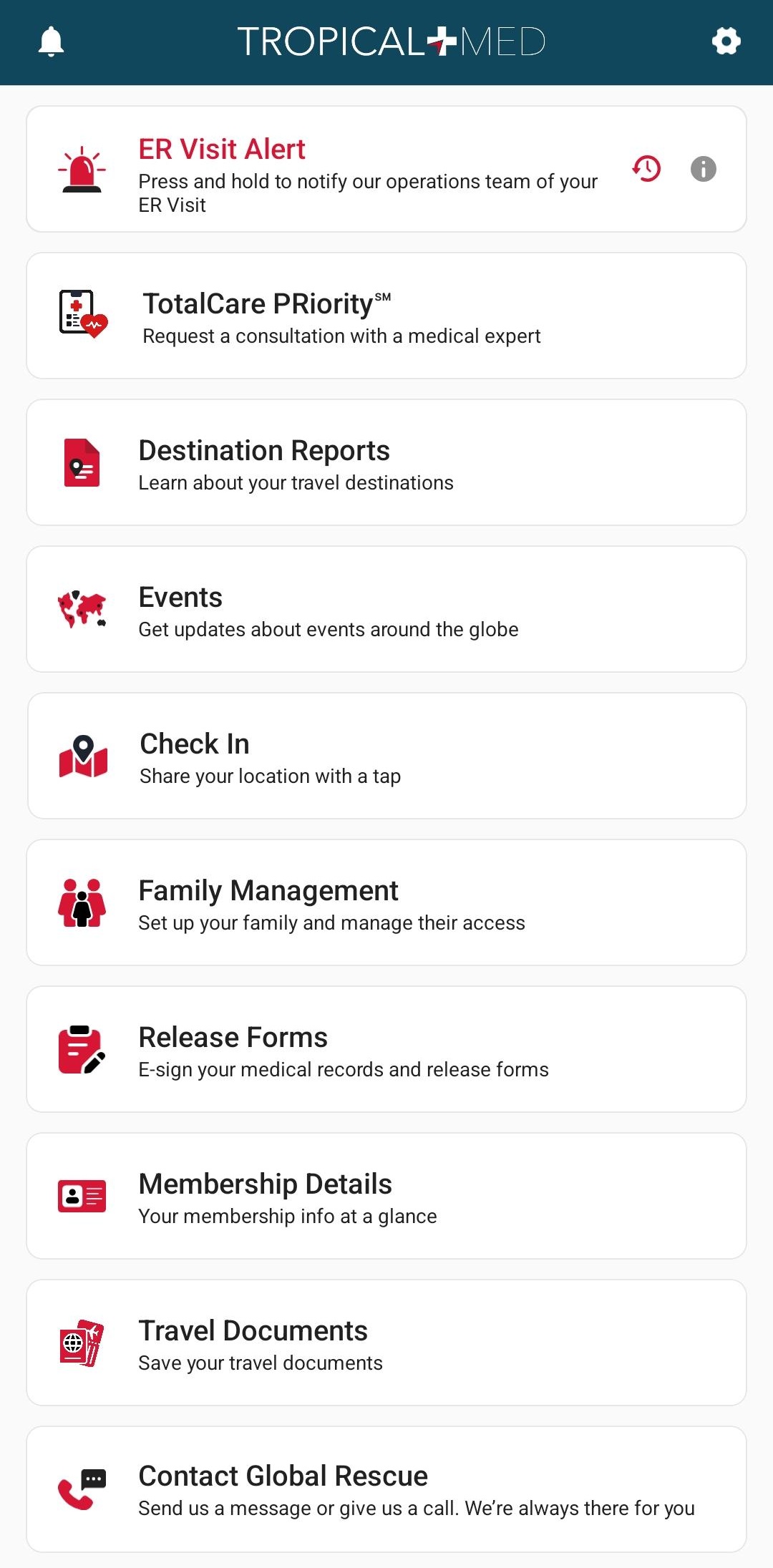
This is the screen you will find yourself in after logging in.

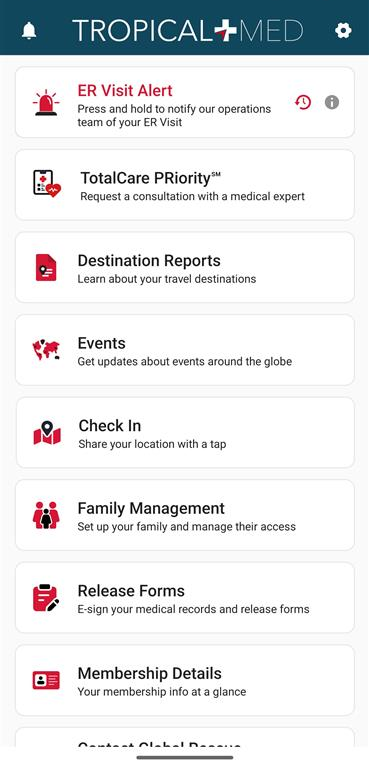
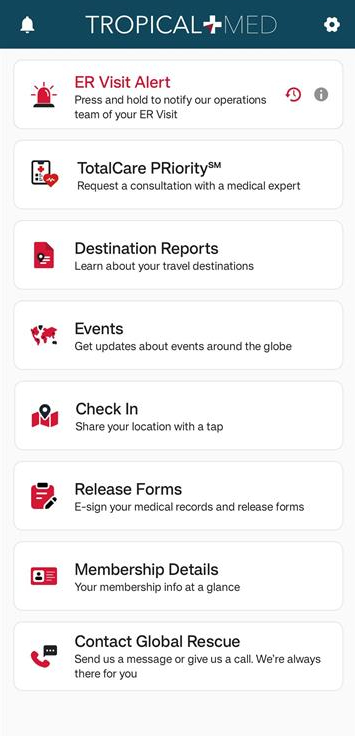
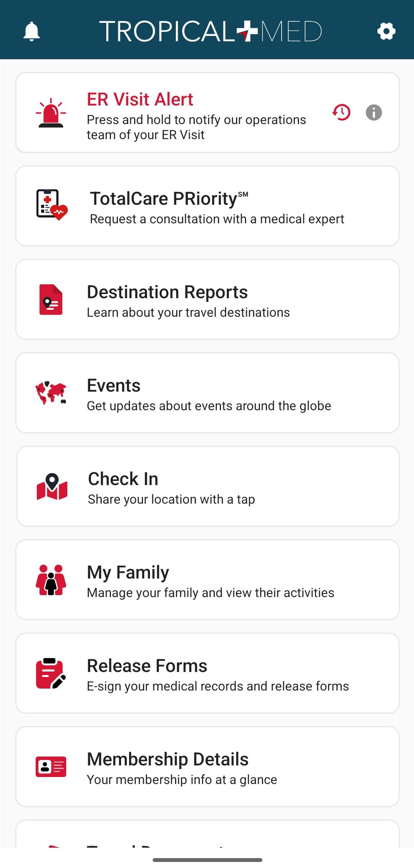
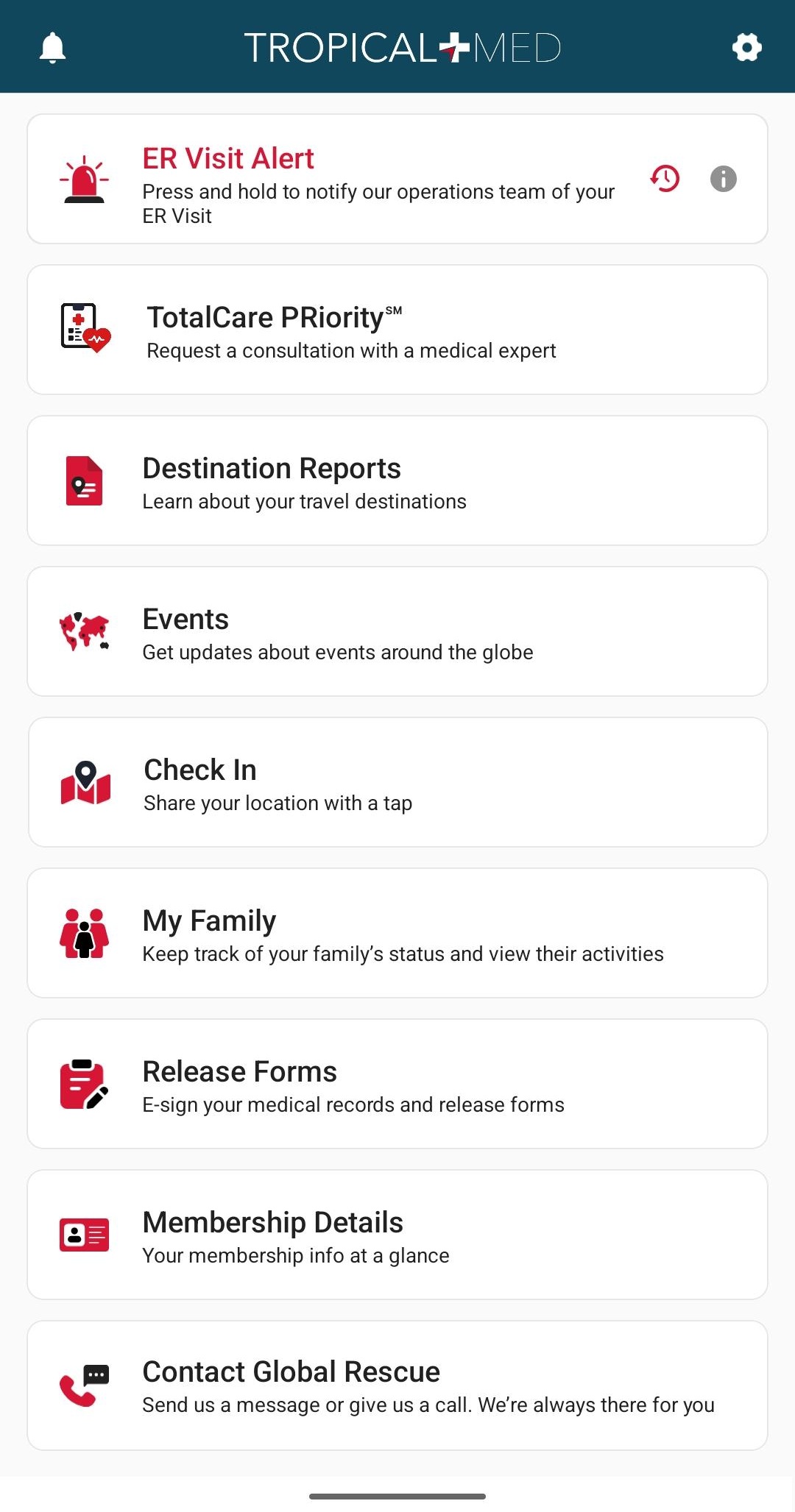
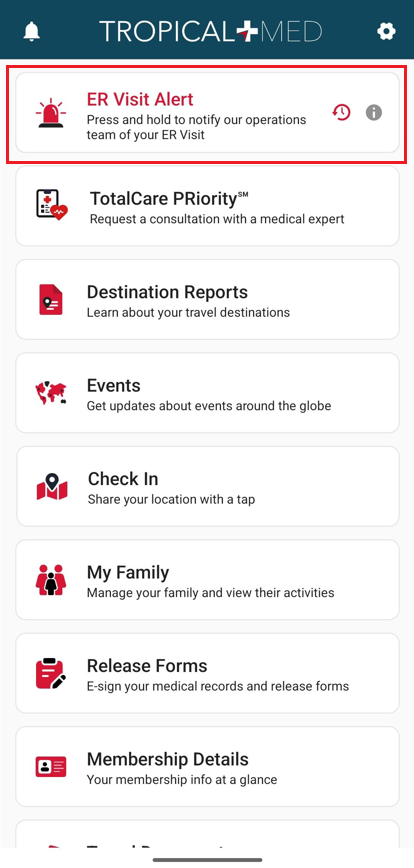
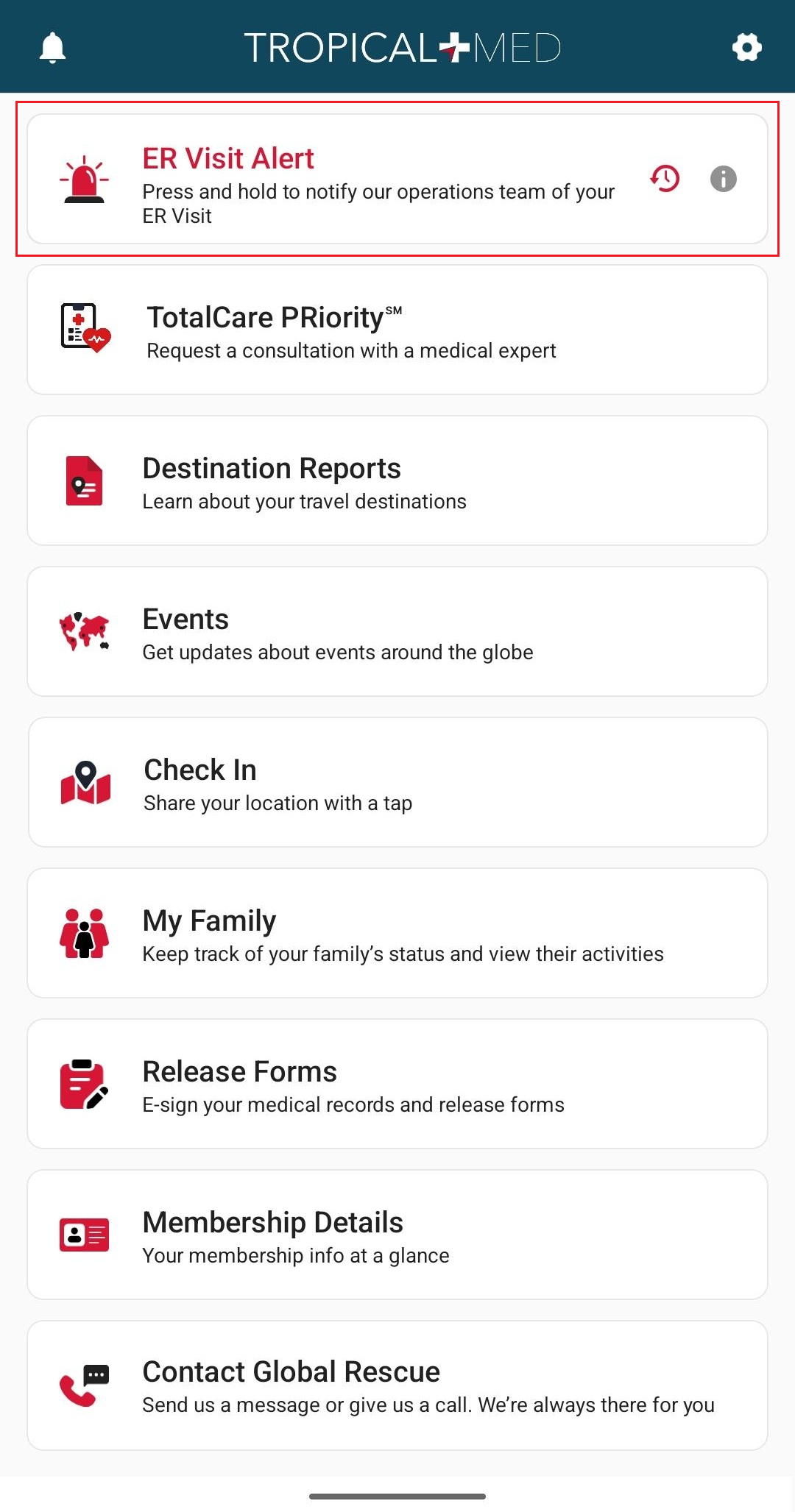
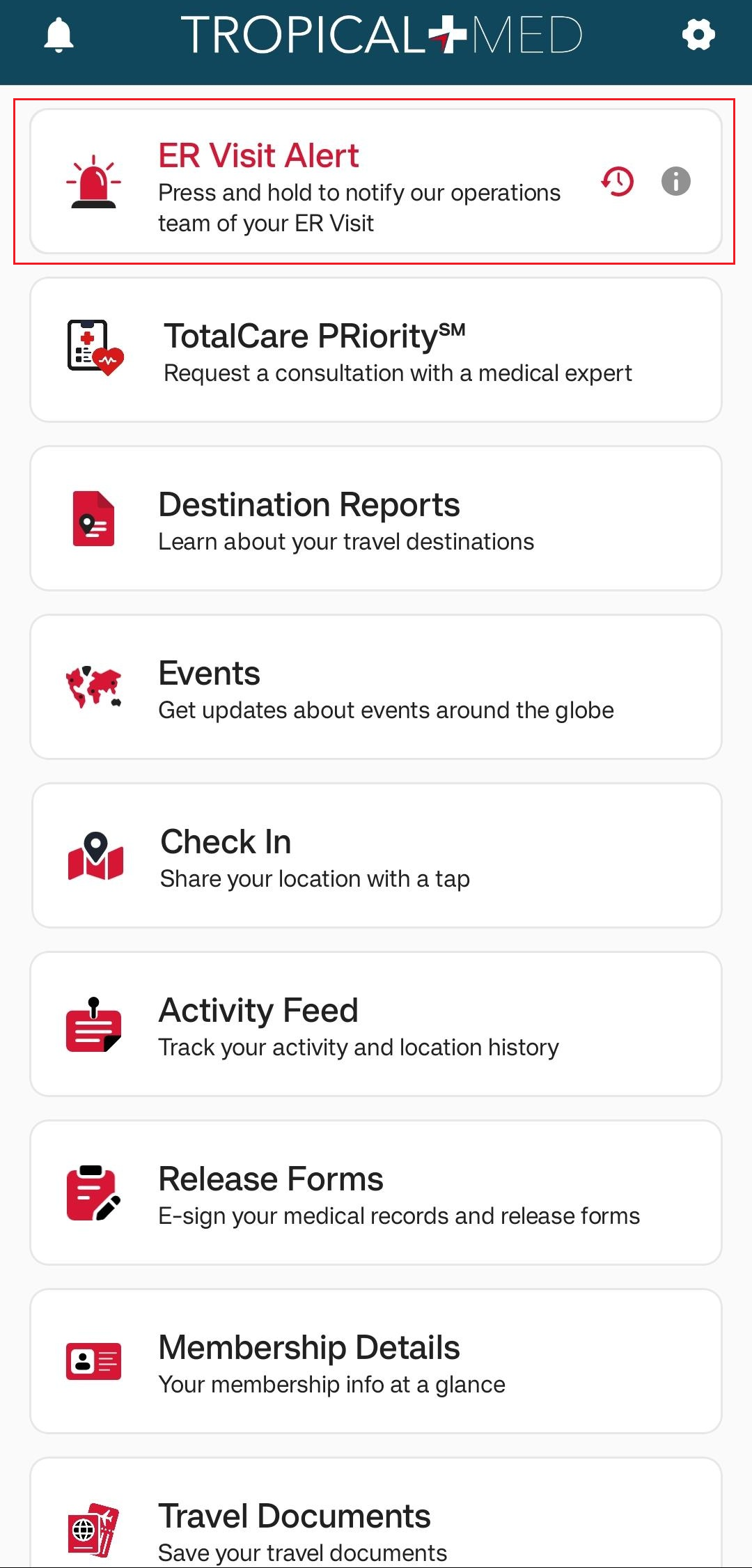
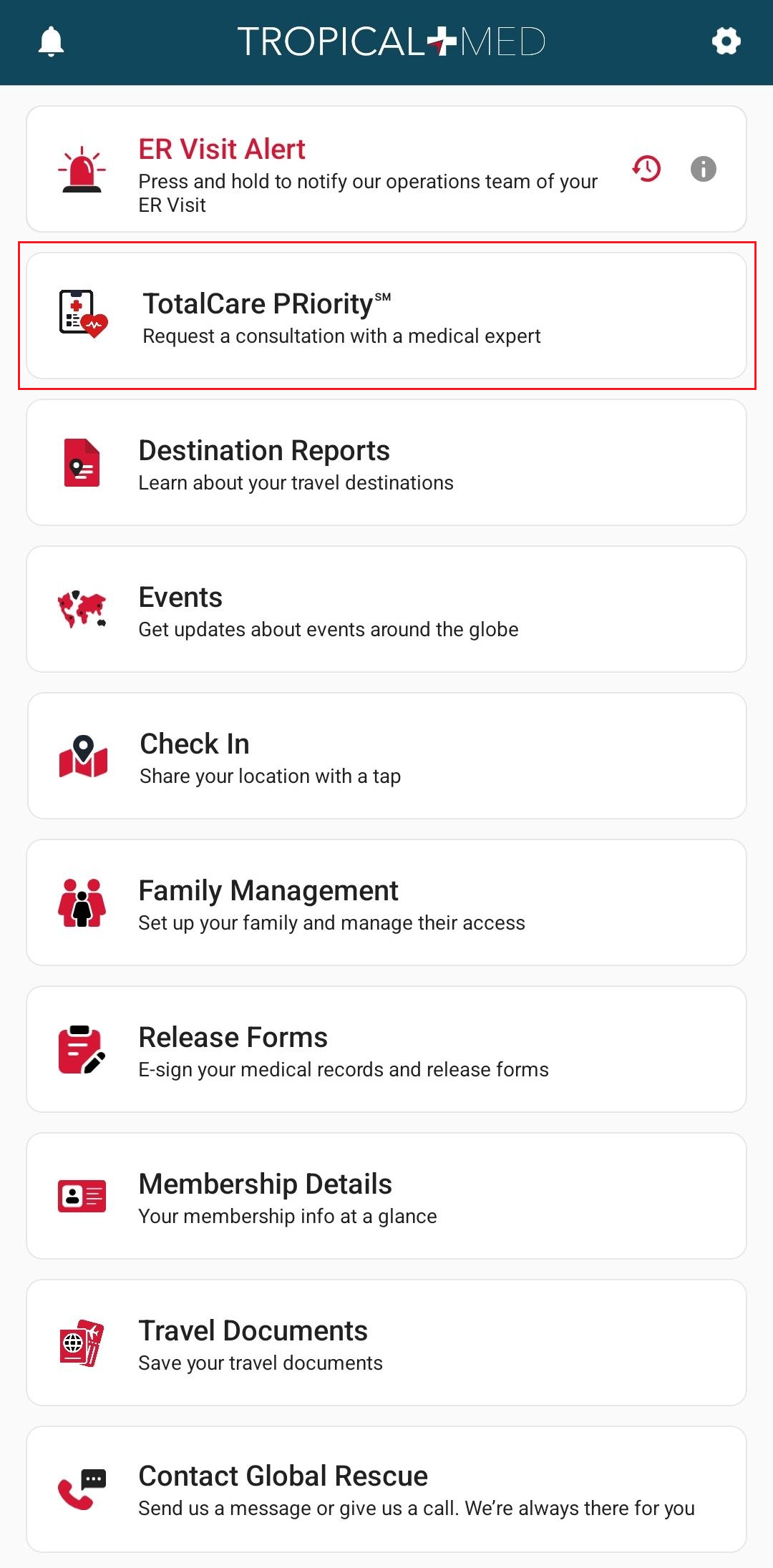
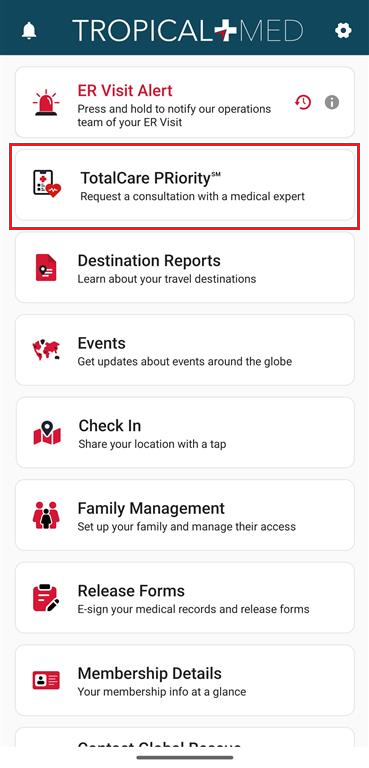
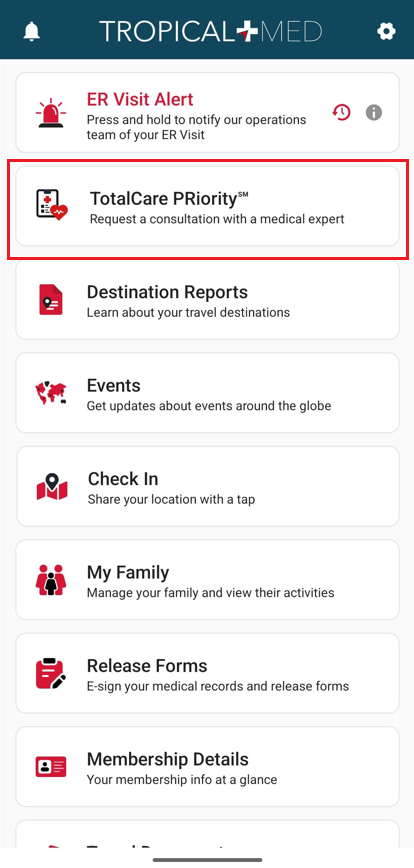
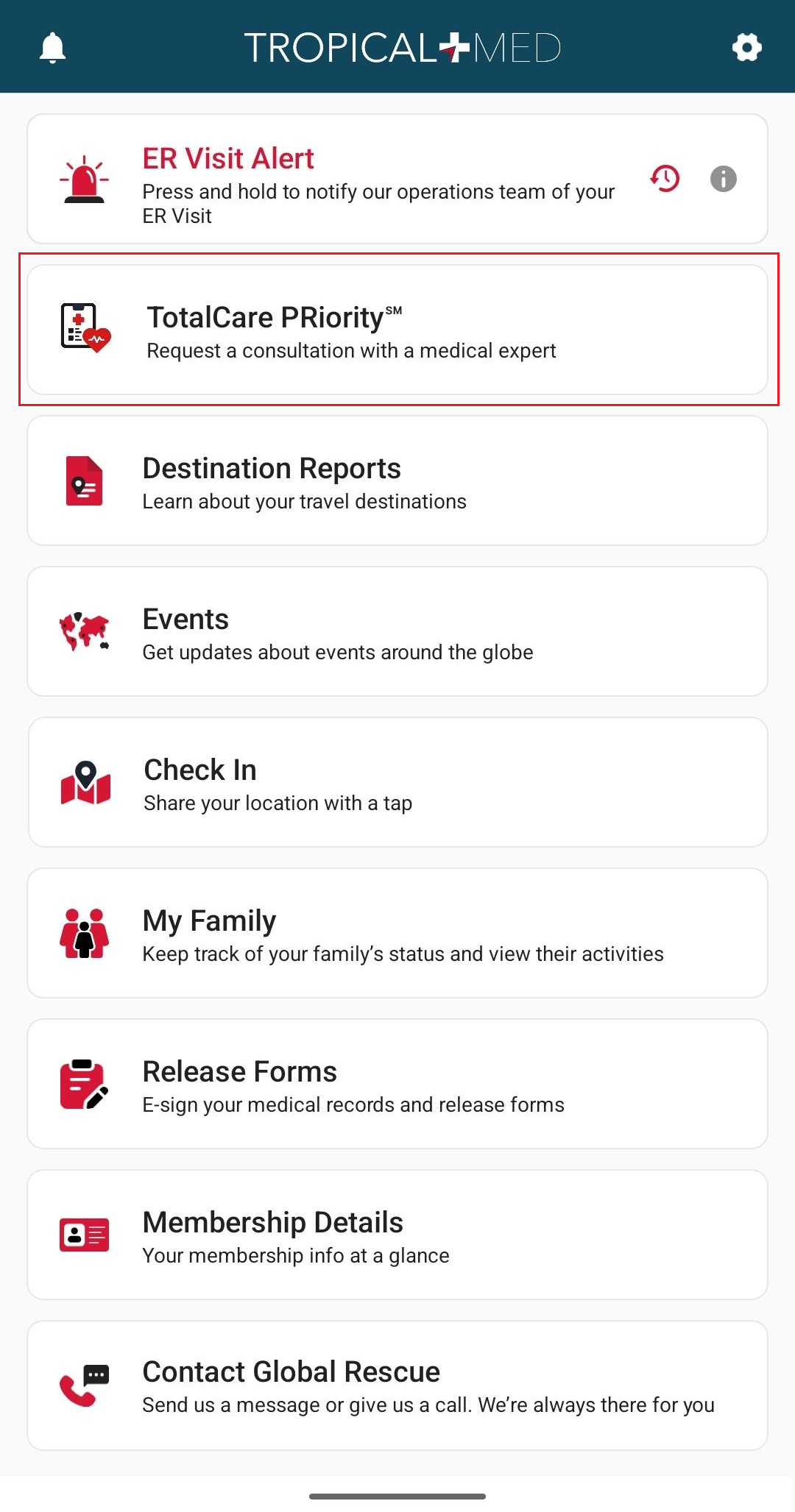
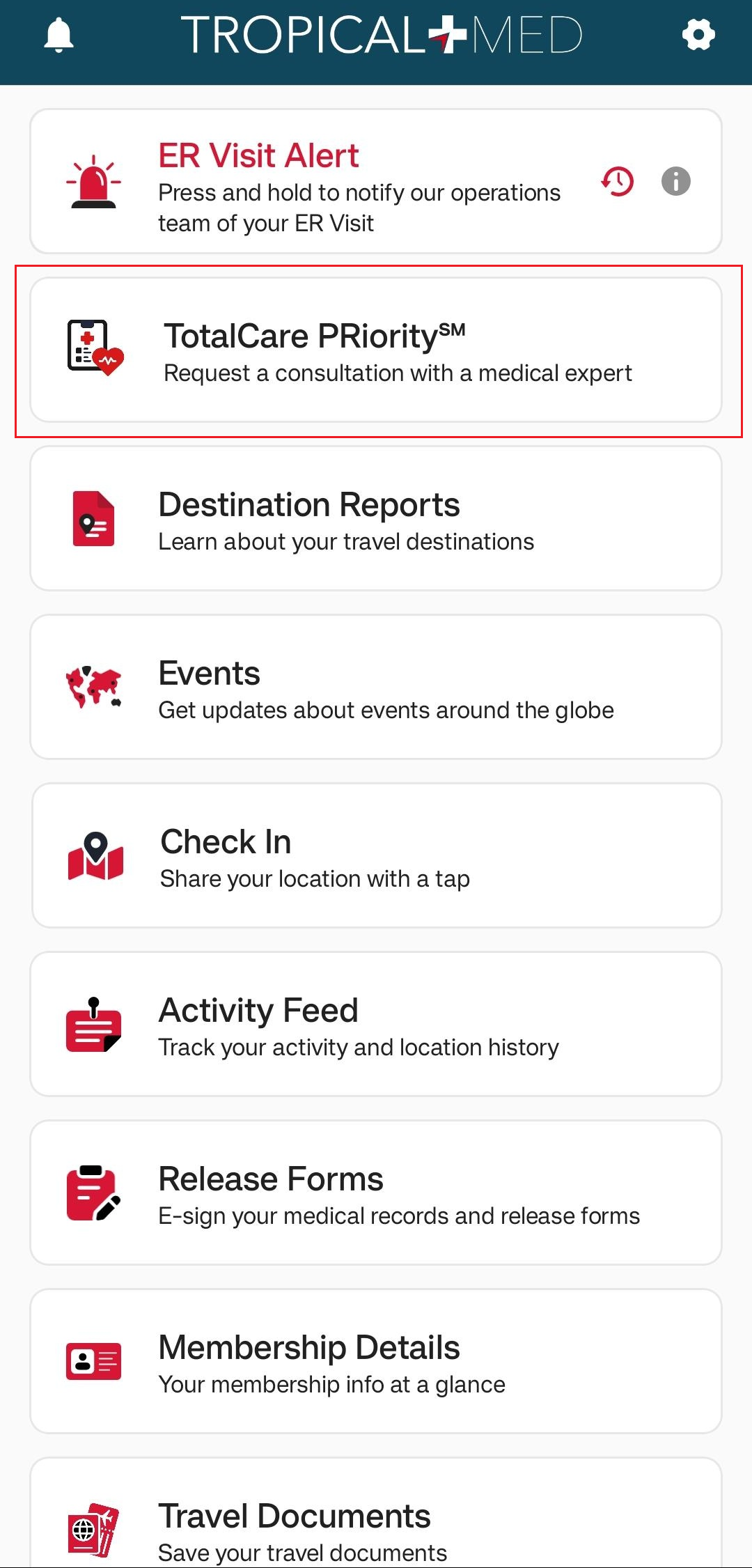
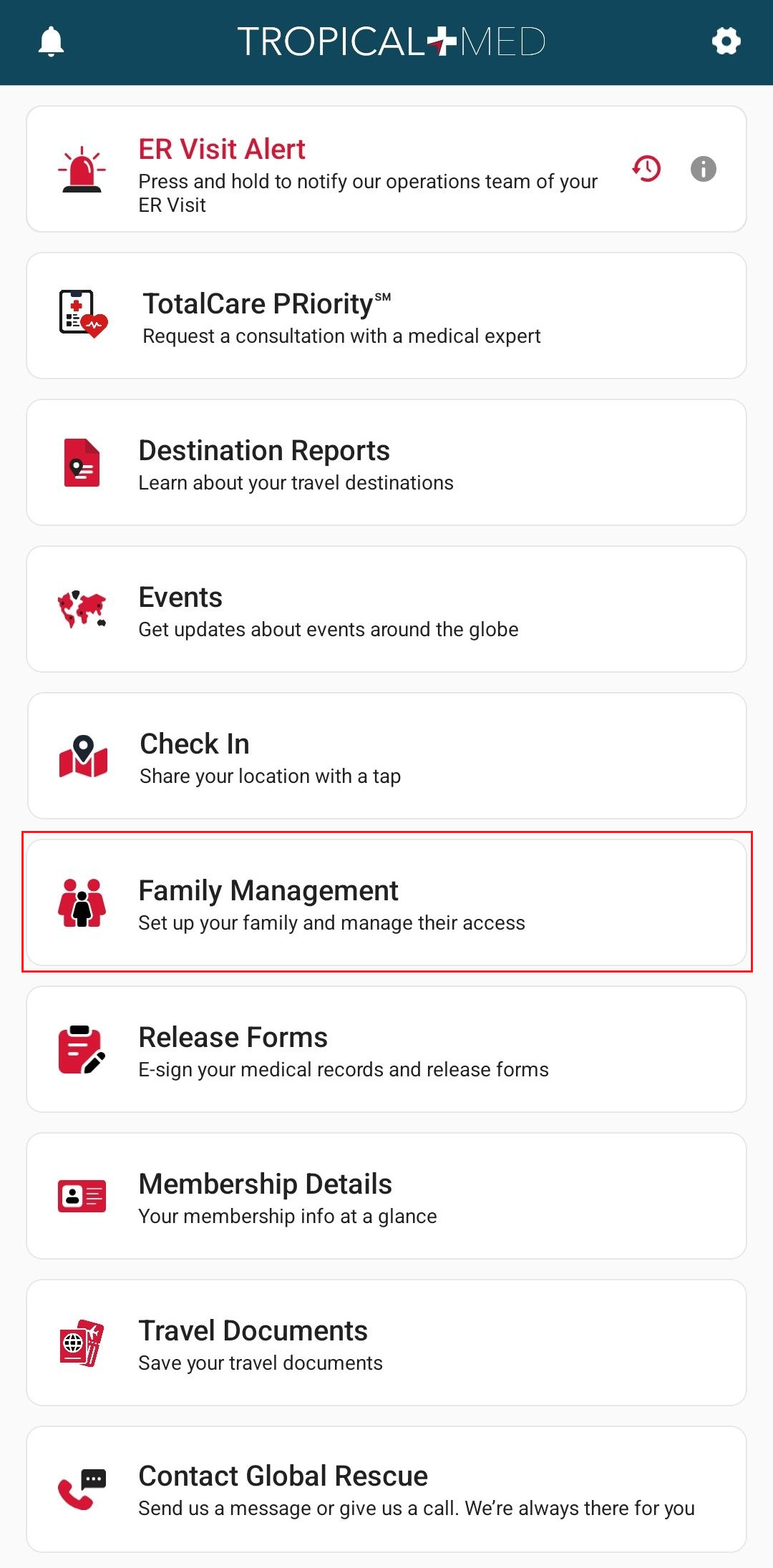
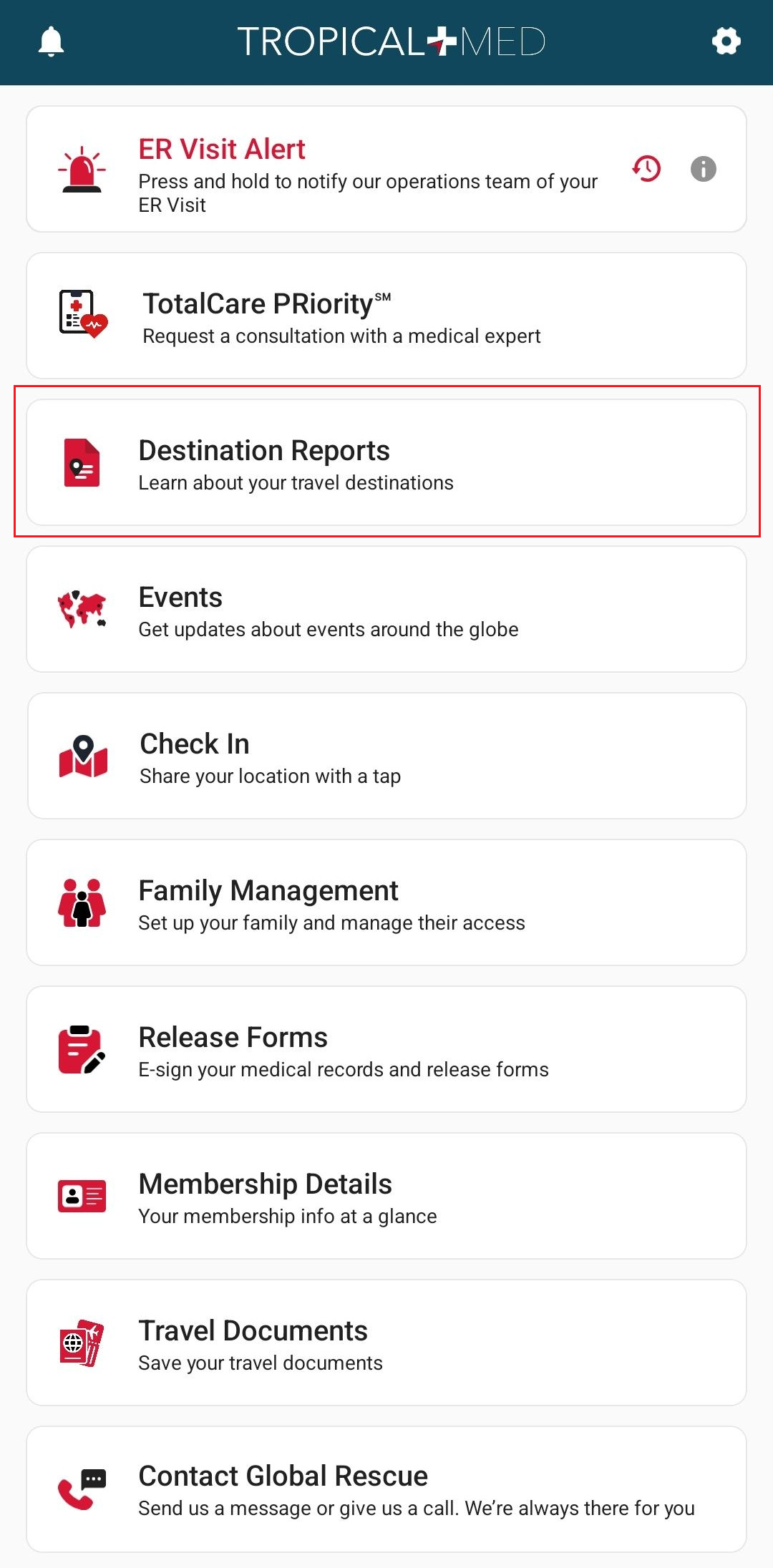
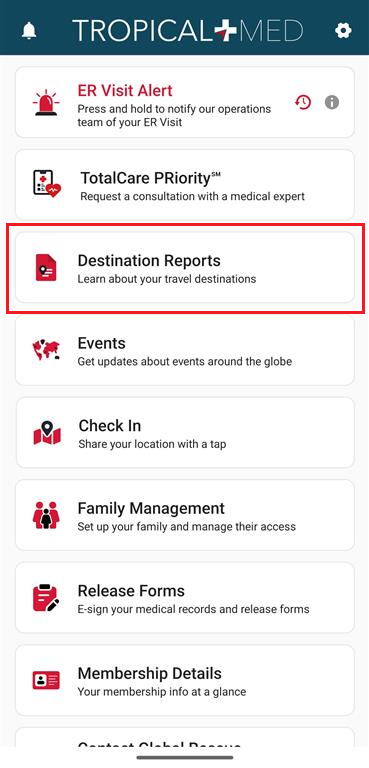
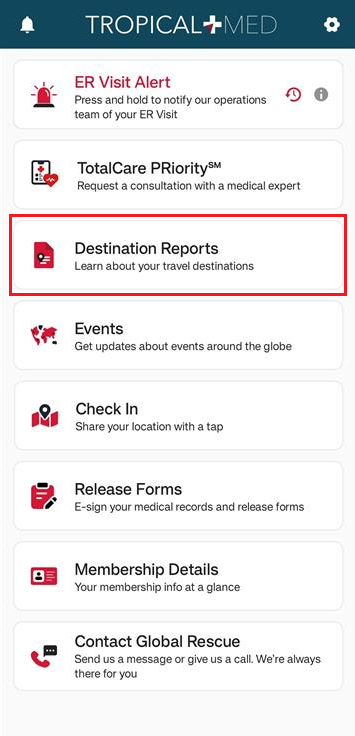
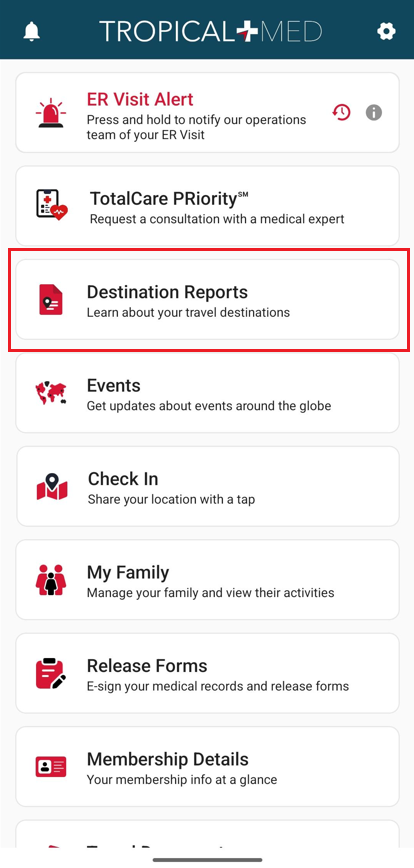
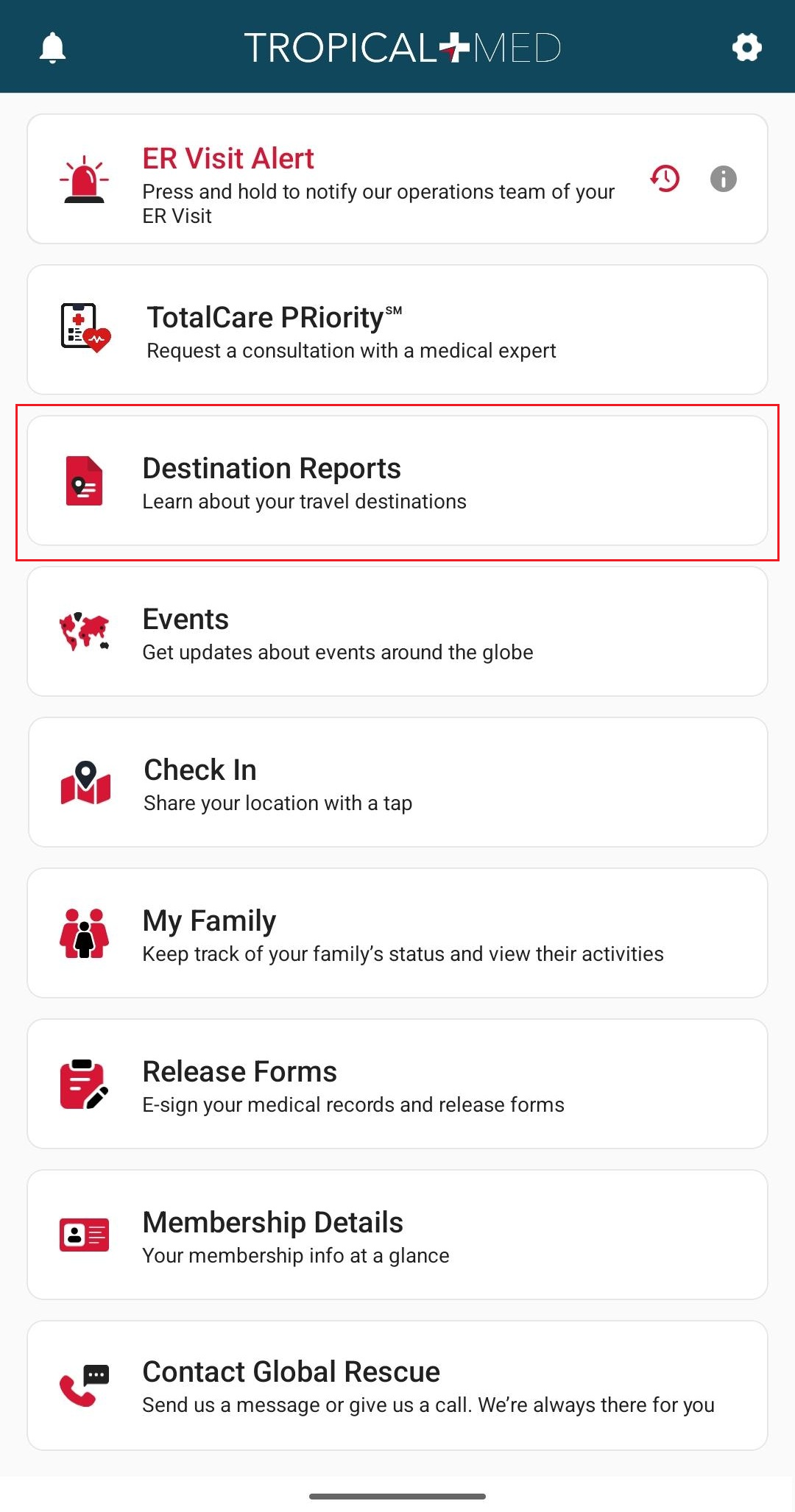
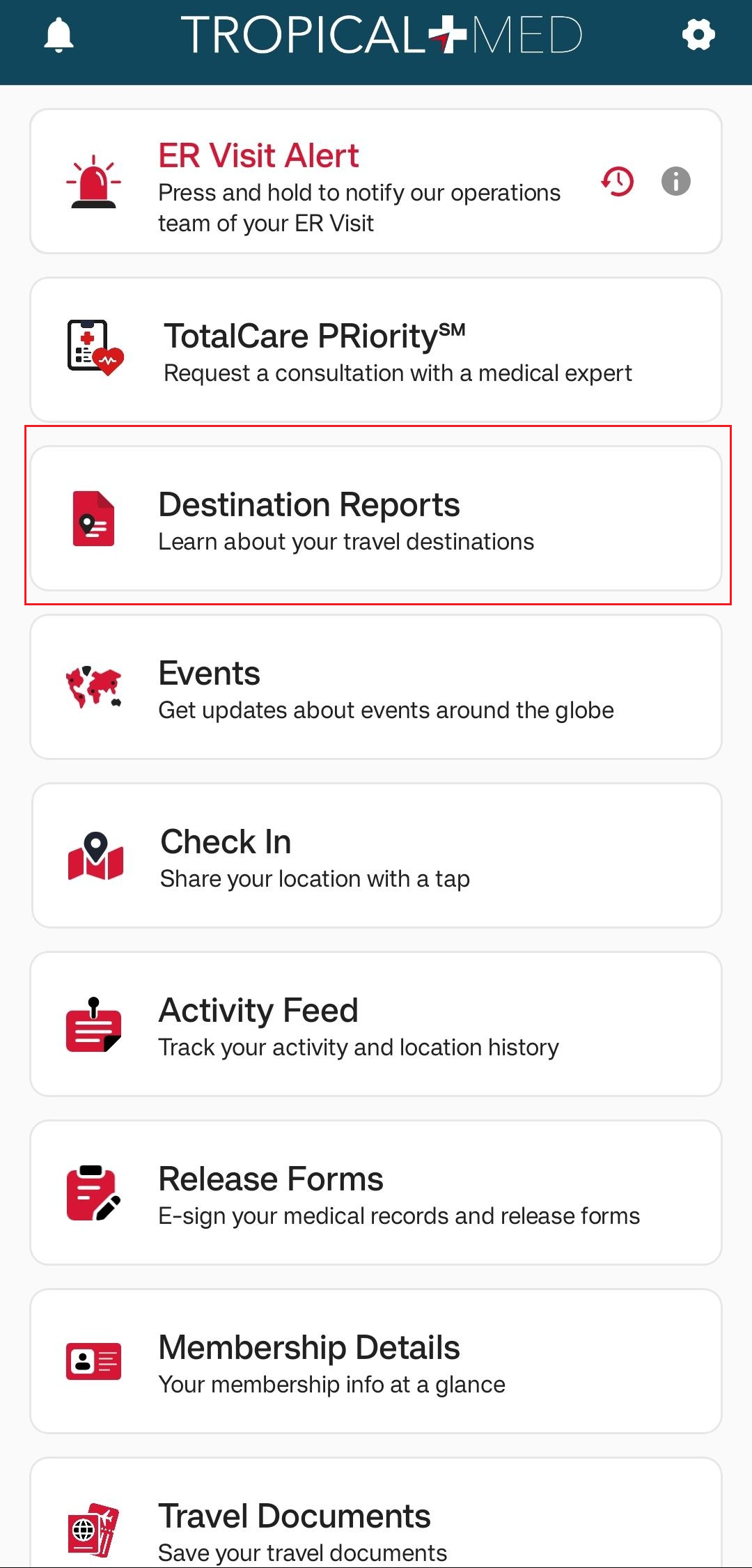
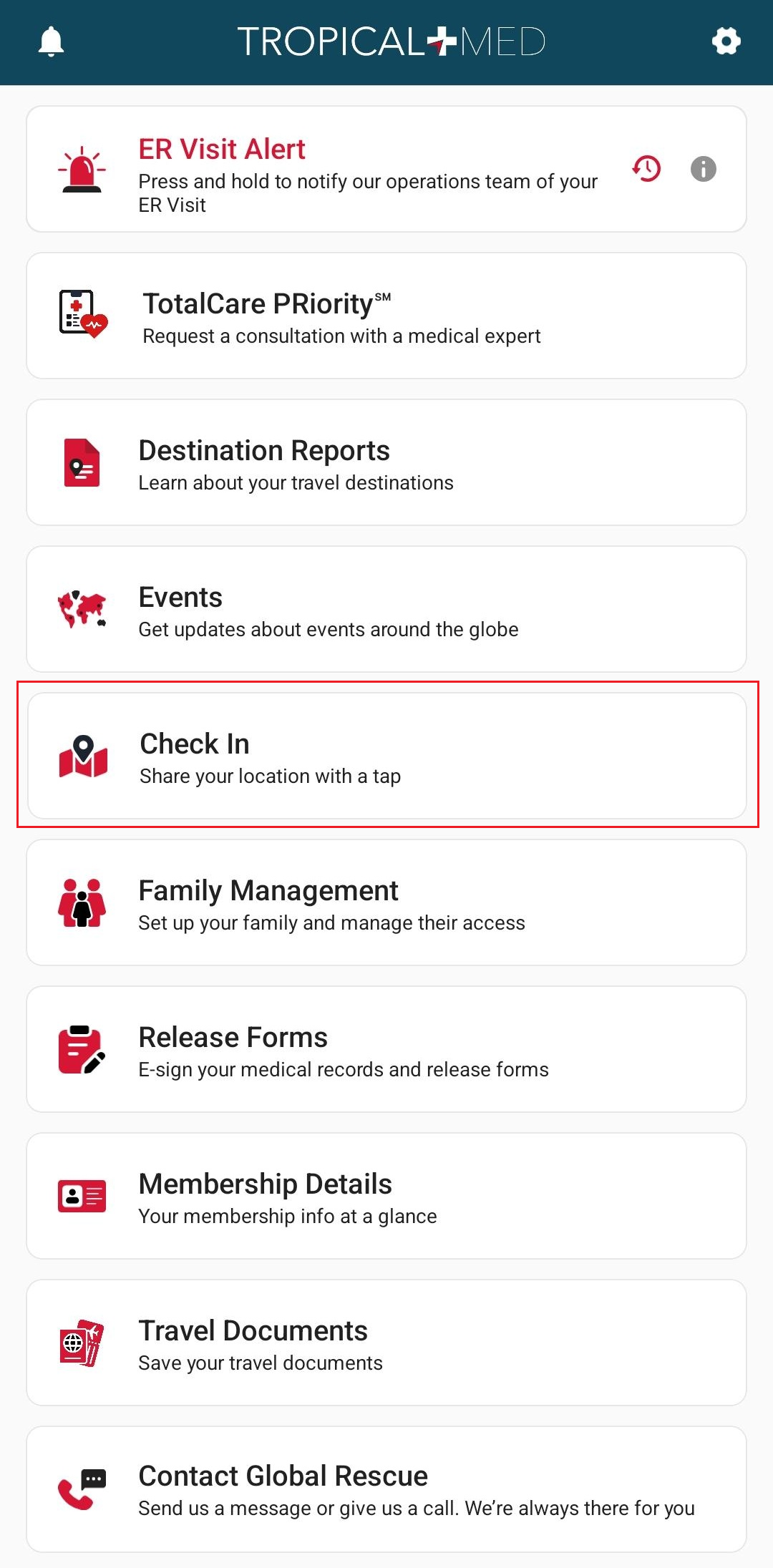
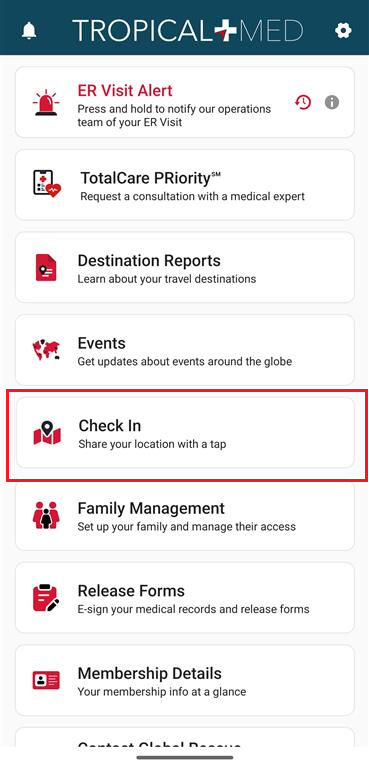
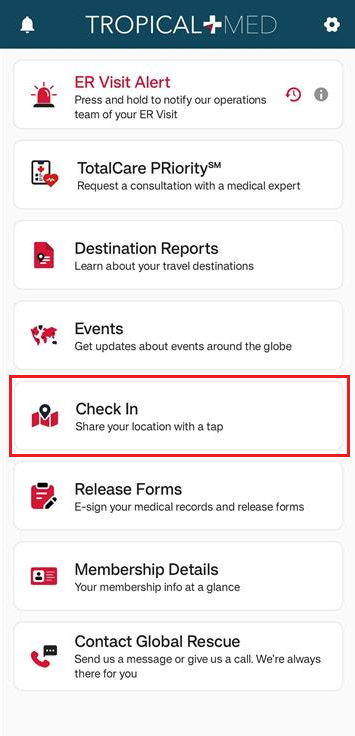
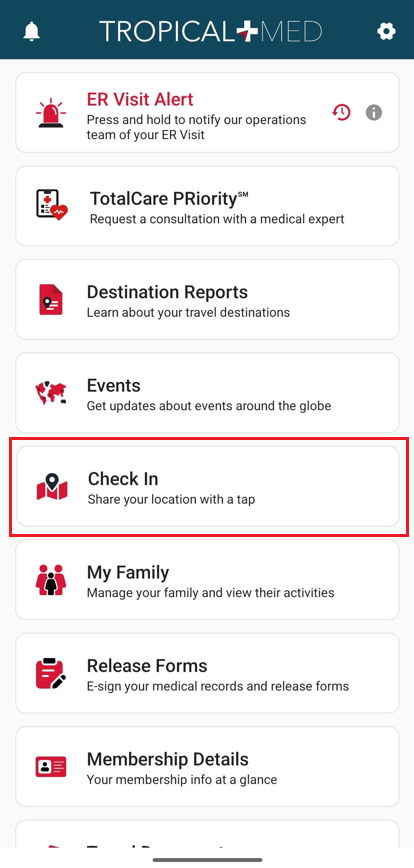
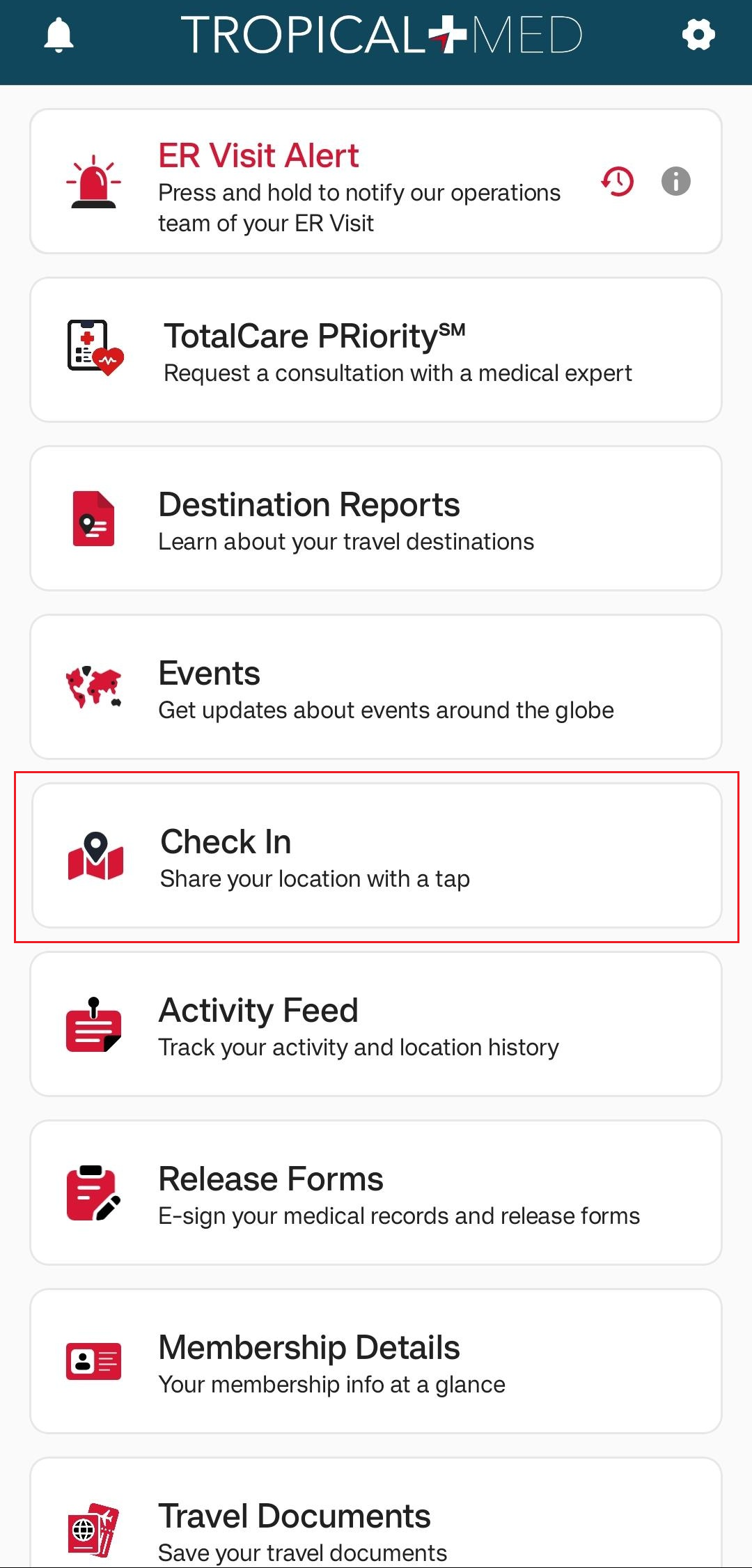
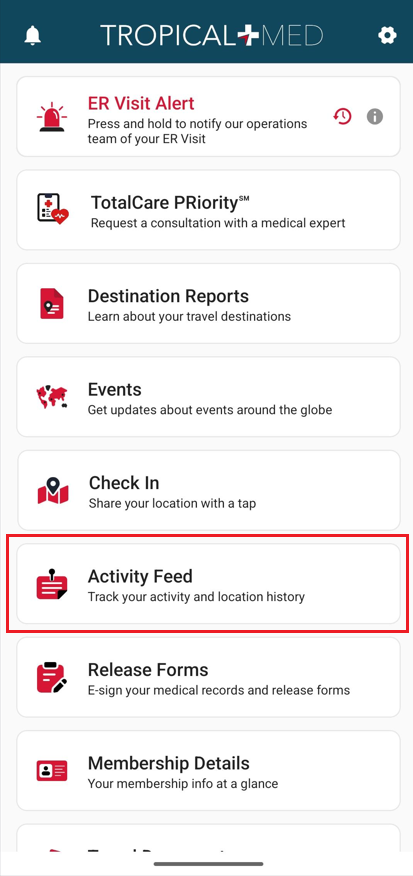
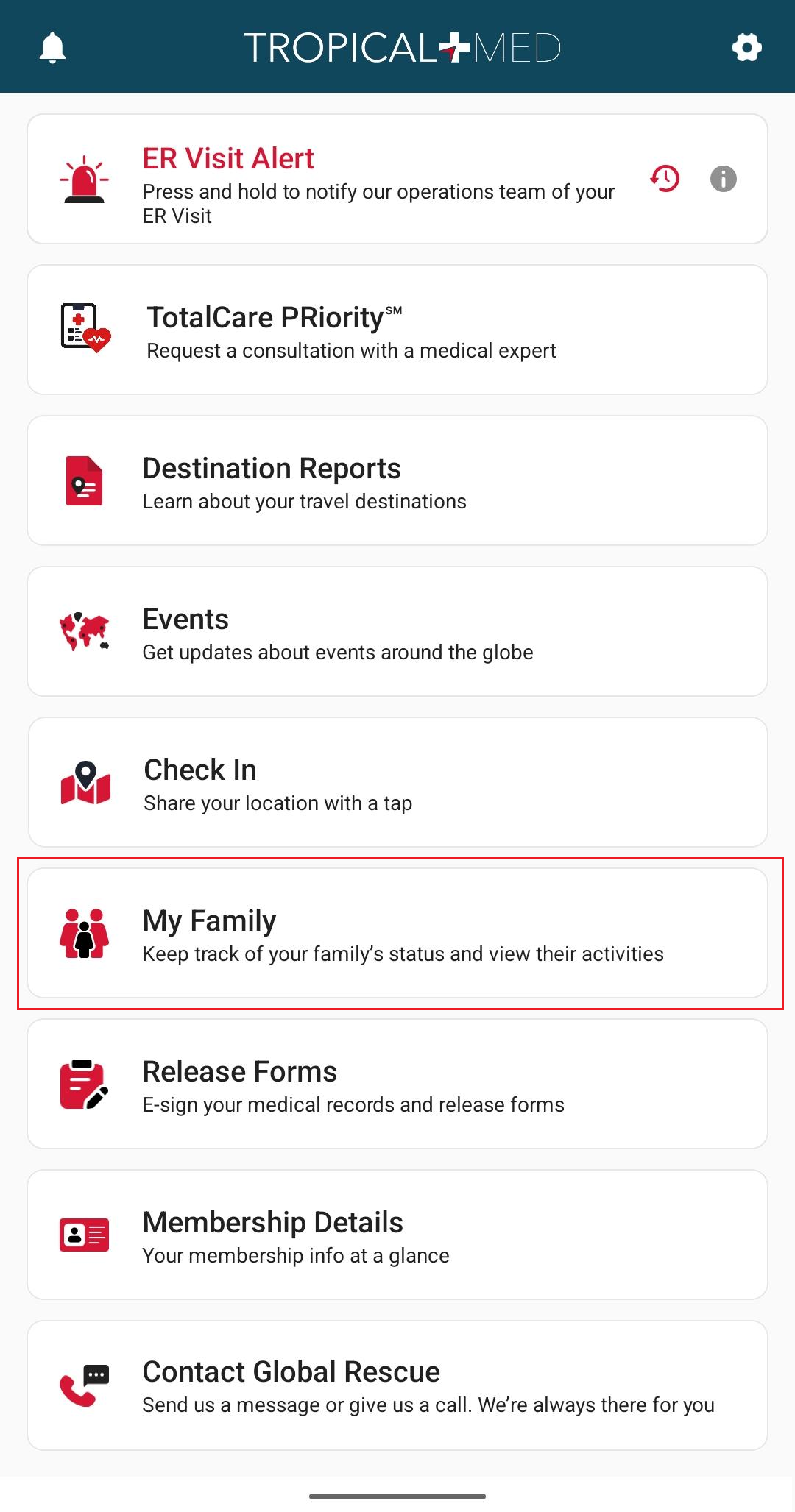
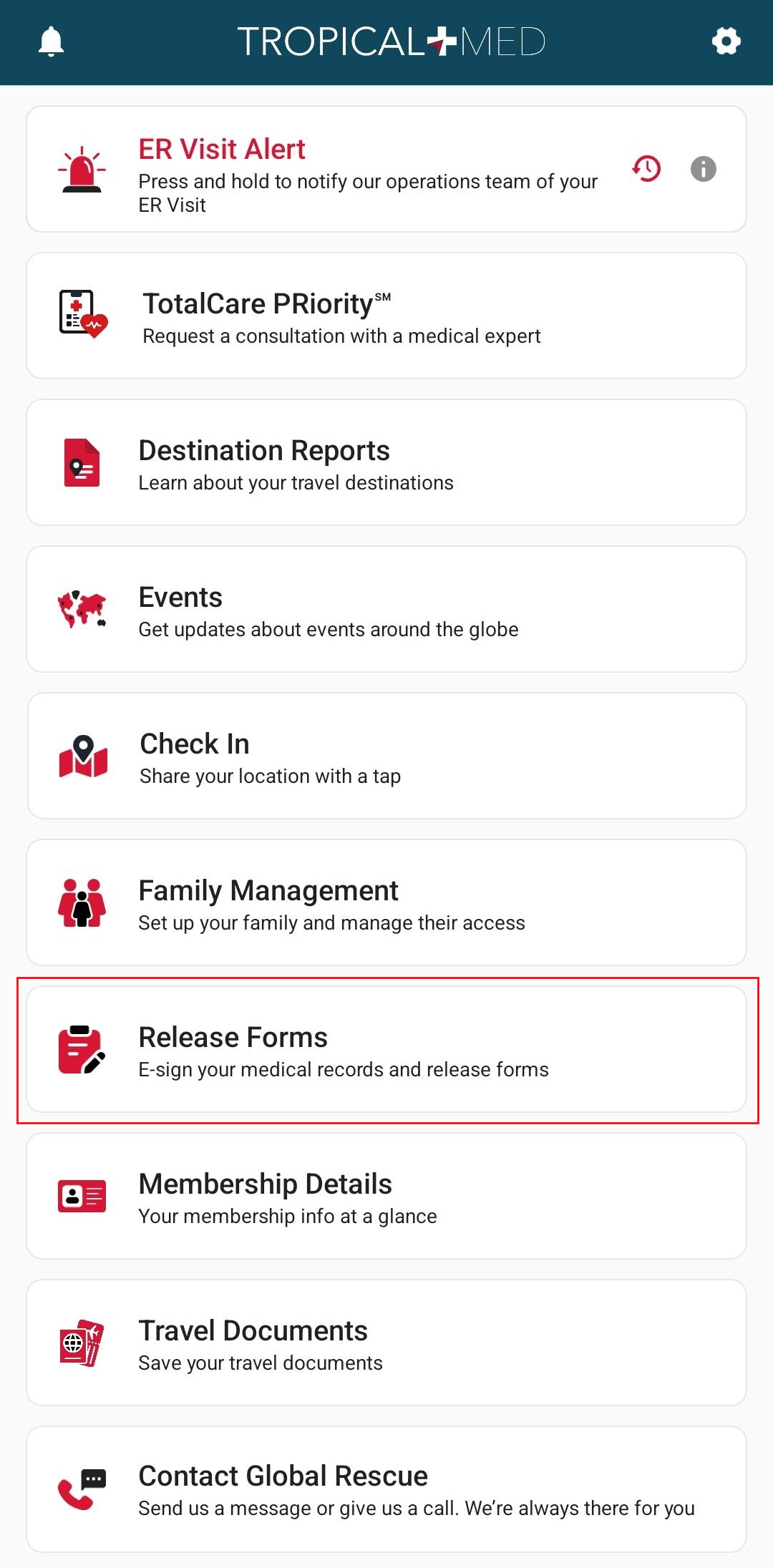
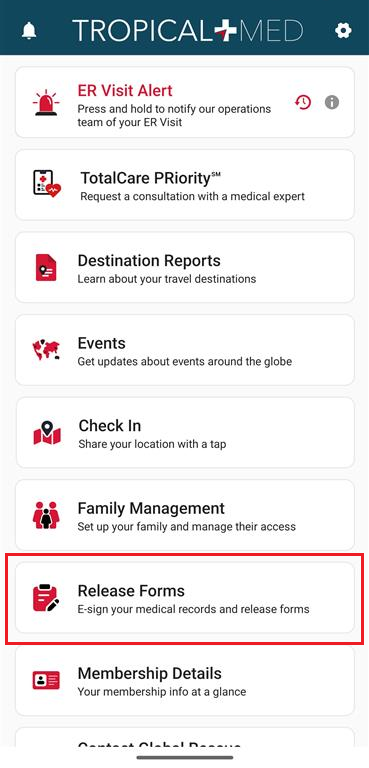
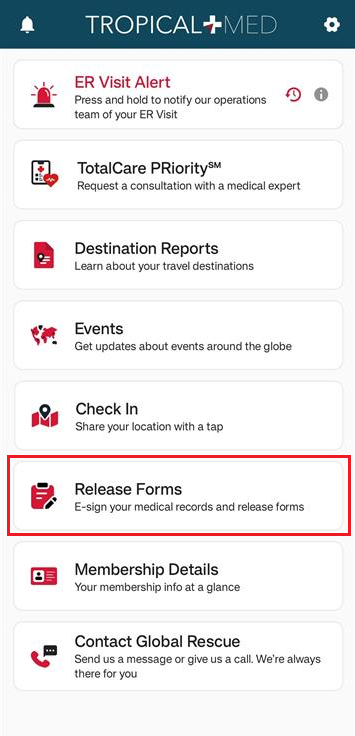
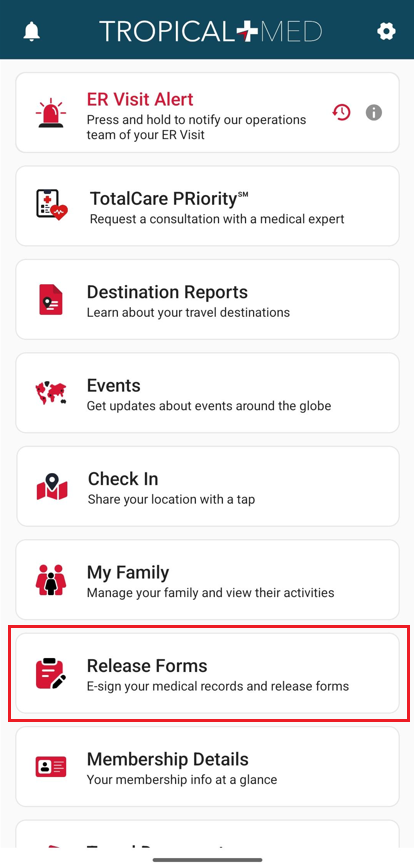
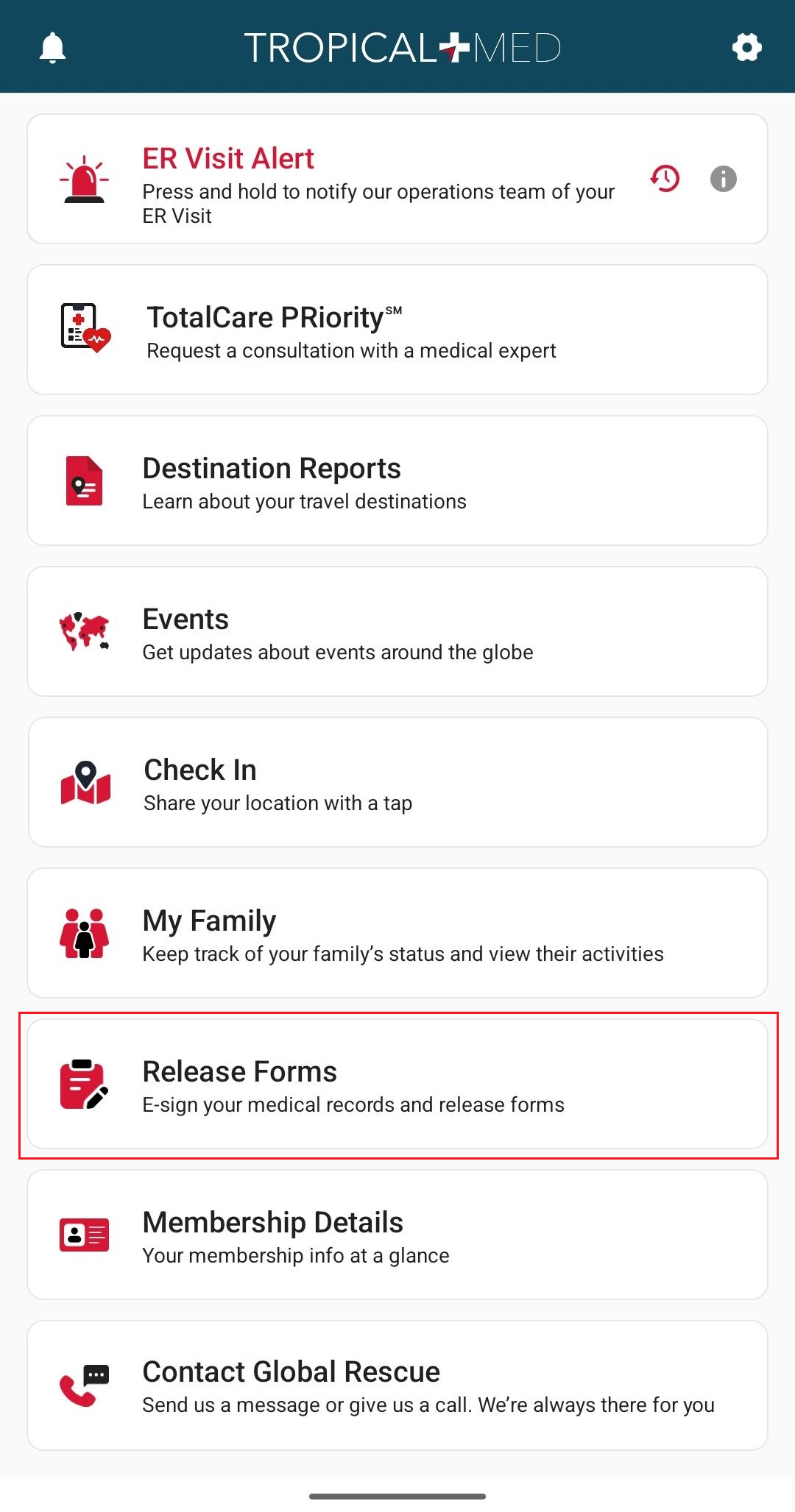
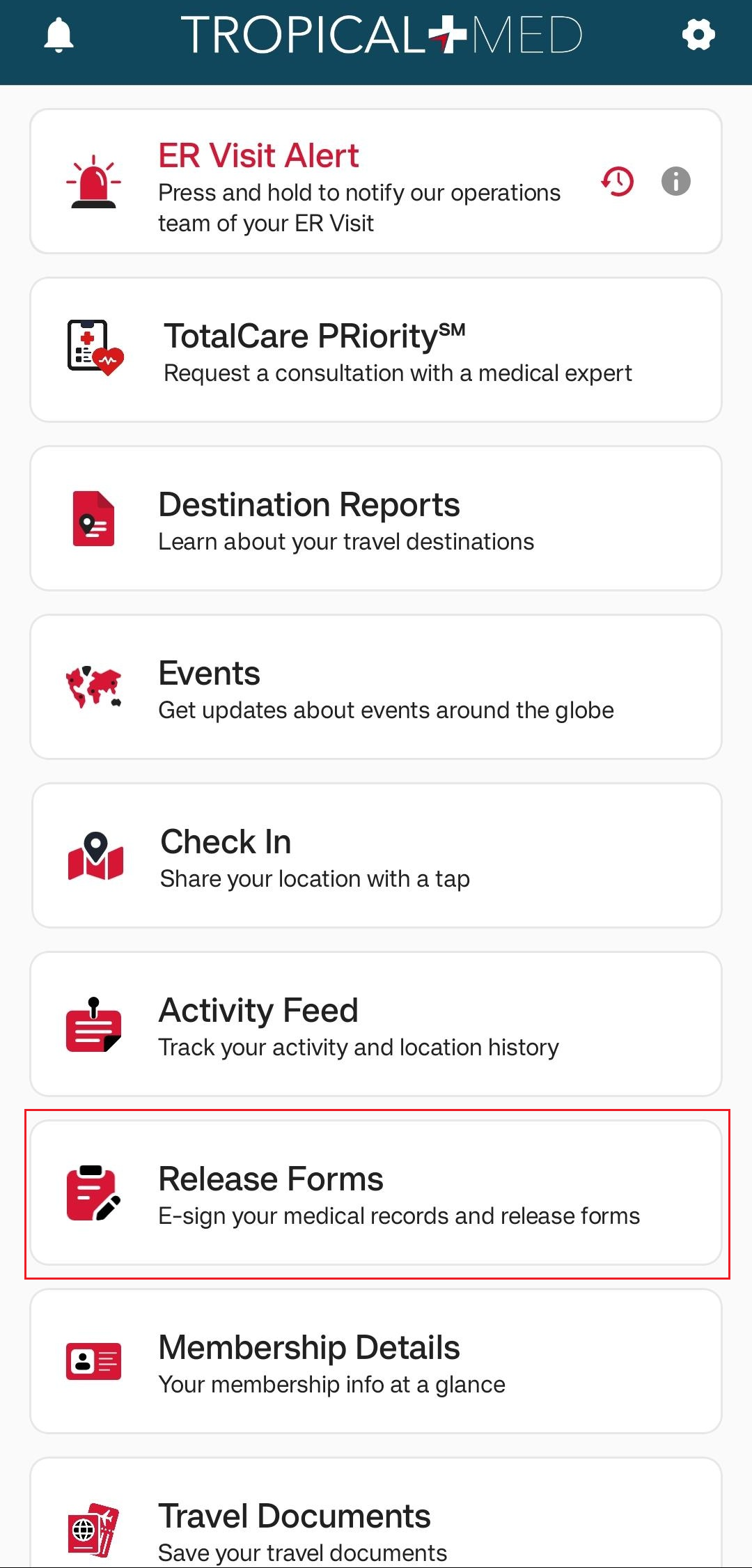
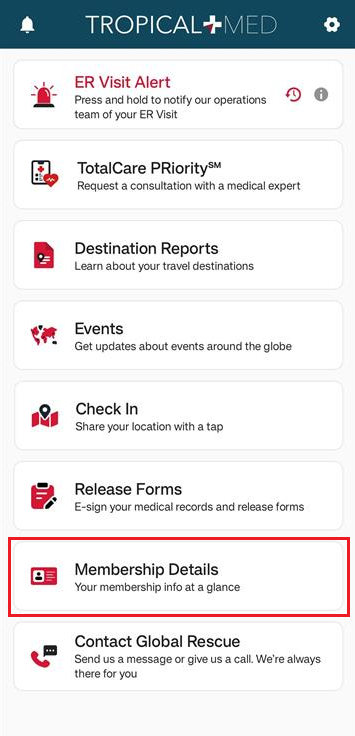
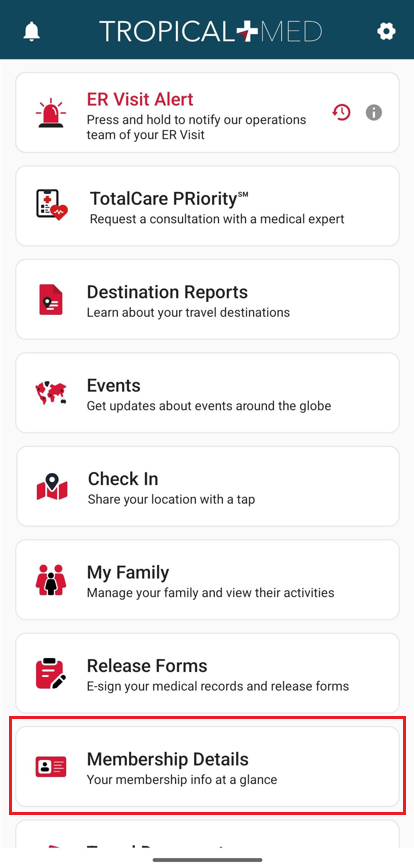
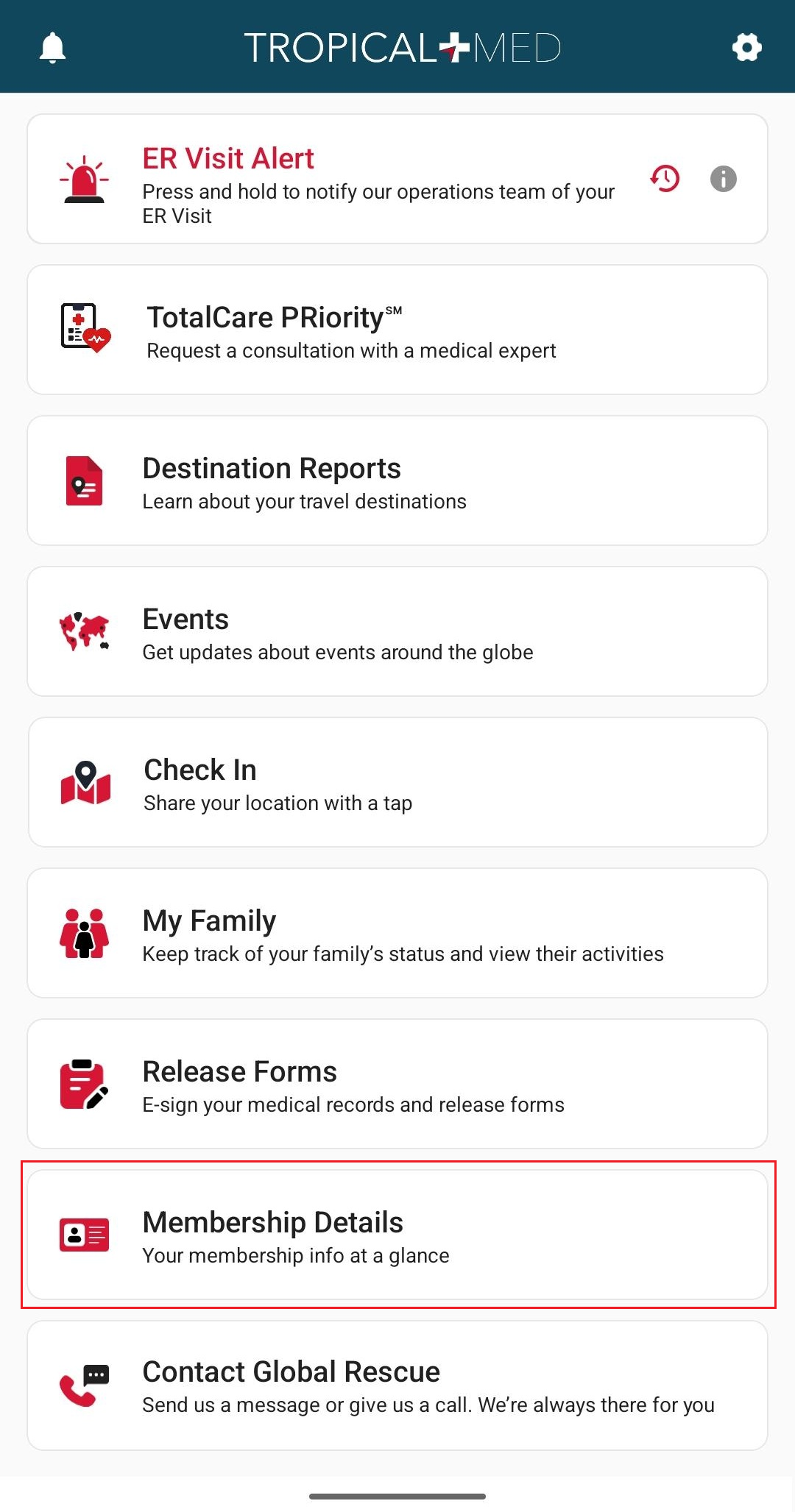
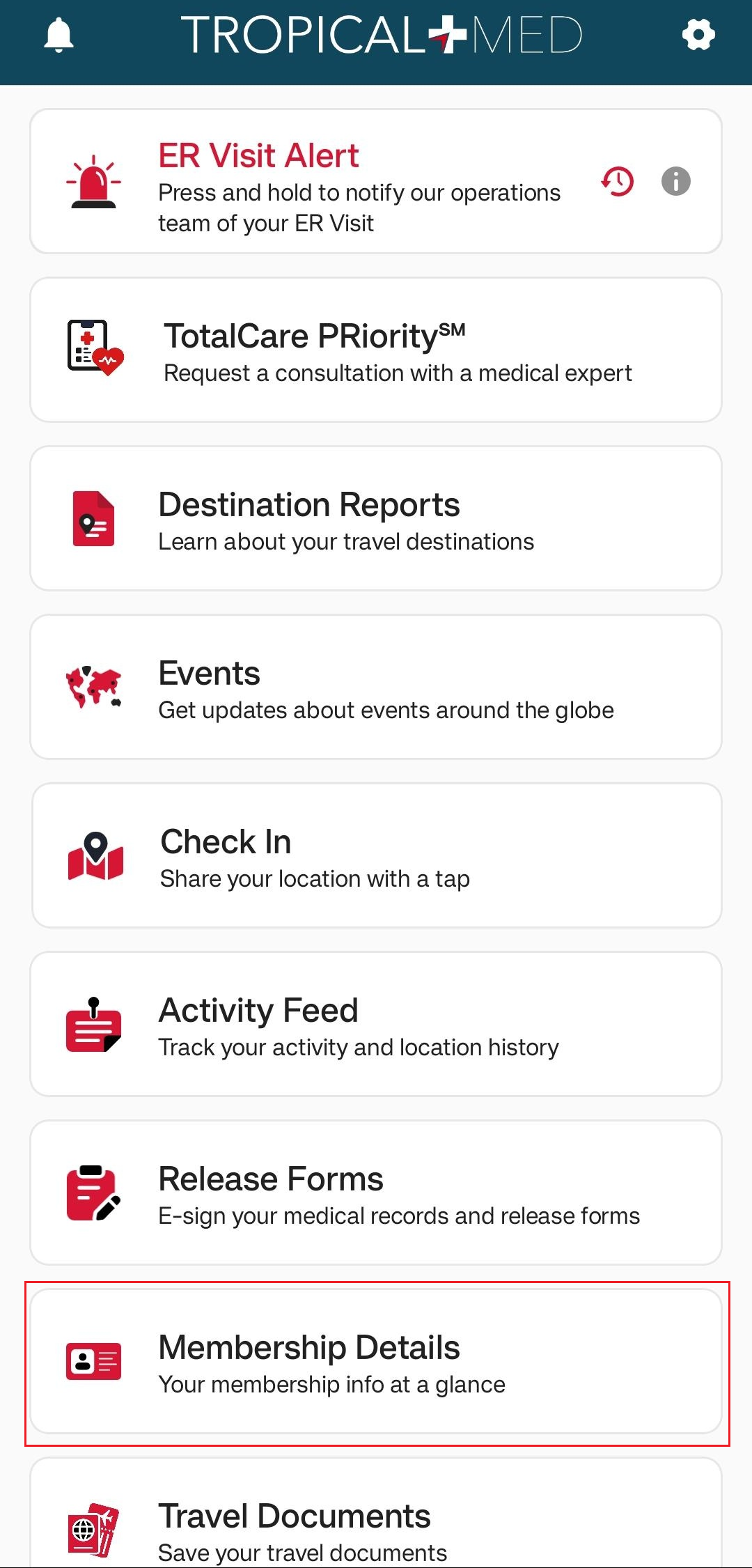
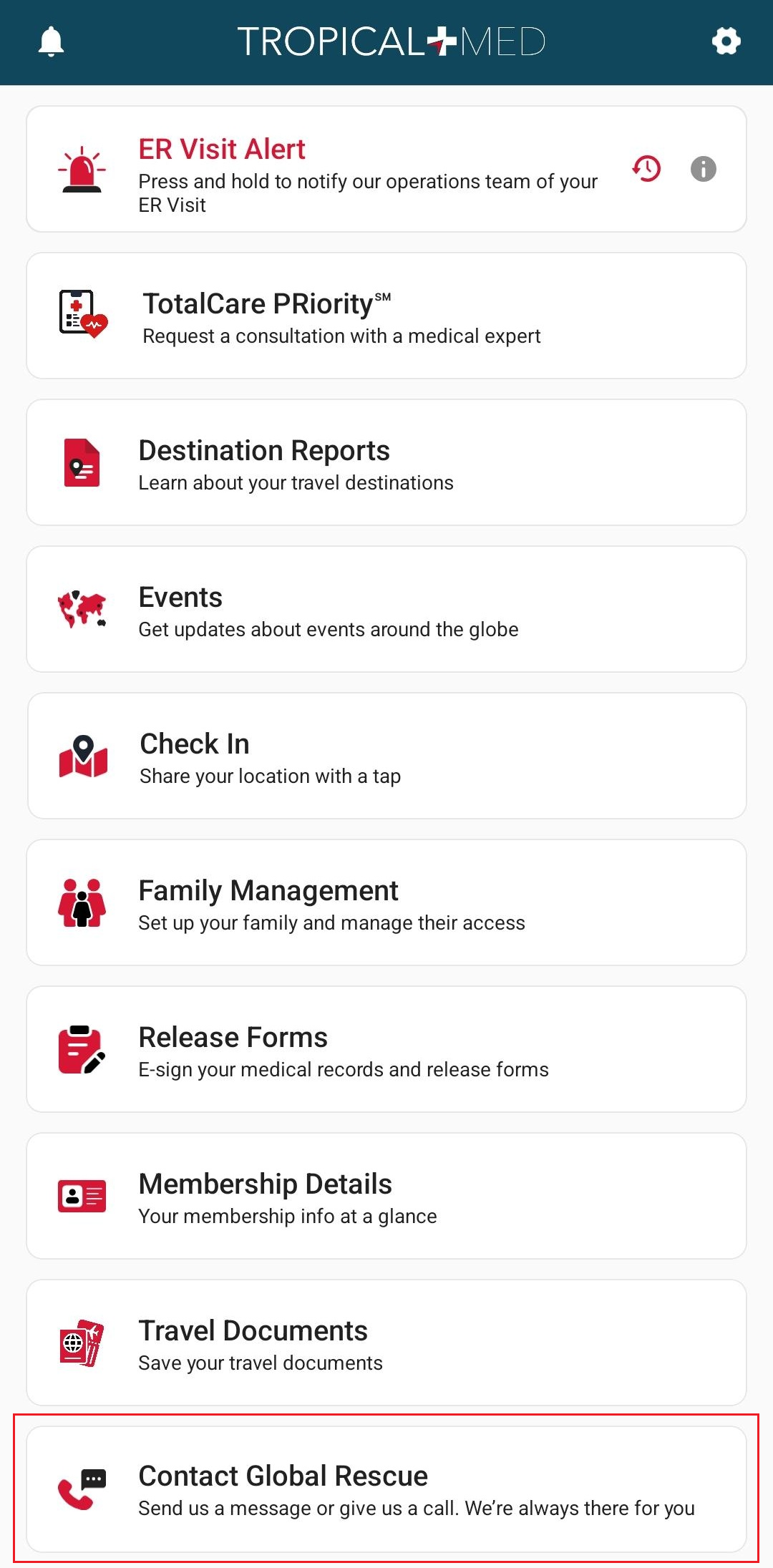
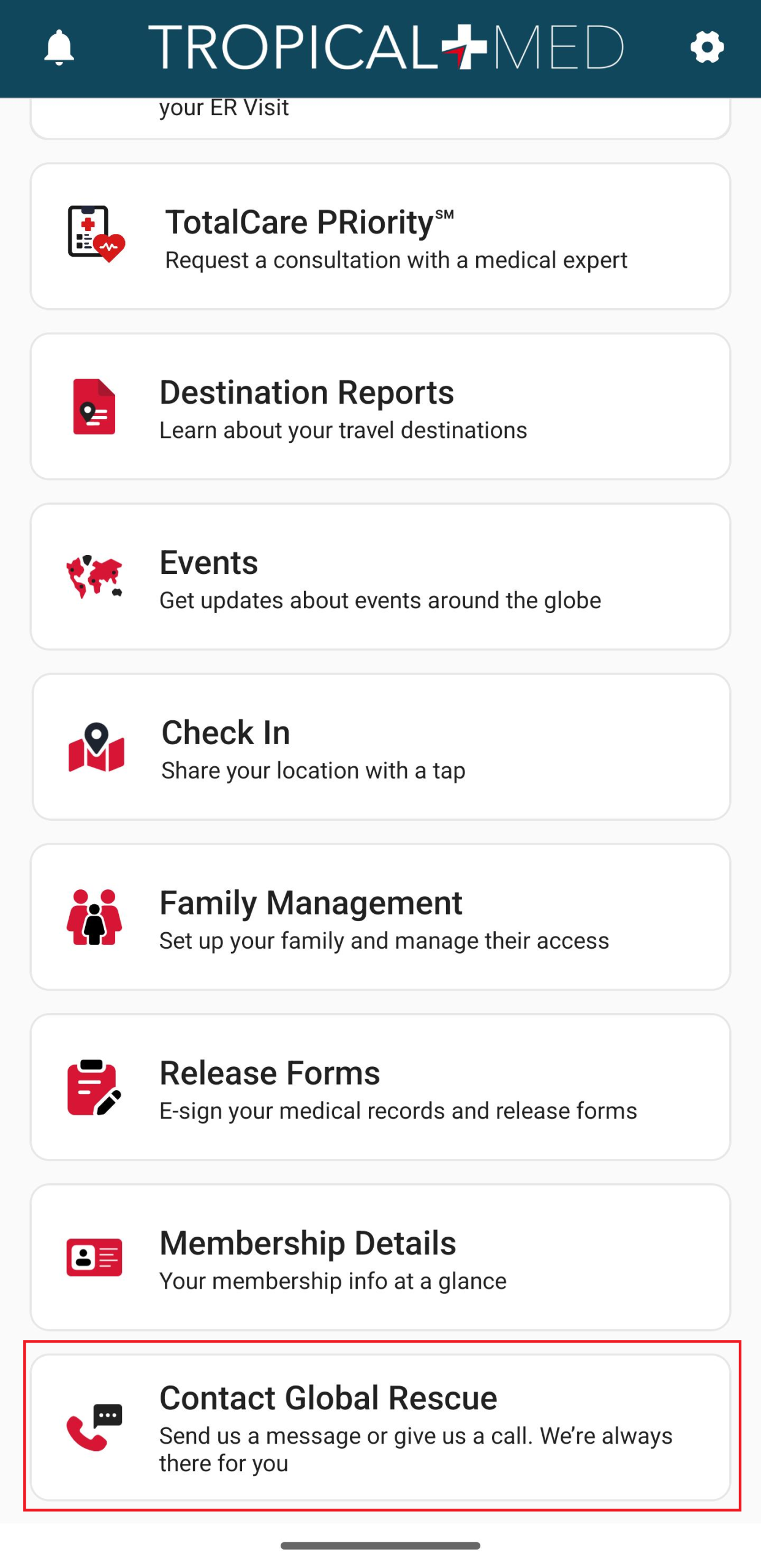
You can access any of My Global Rescue’s main features from this screen. These are:

About Global Rescue

My Global Rescue puts vital medical, security, and rescue resources at your fingertips wherever you are in the world. Our state-of-the-art technology allows you to have face-to-face video consultations with our experts, including critical care paramedics, physicians, and military special operations veterans. Using My Global Rescue gives you 24/7 access to our global operations centers and immediate assistance with your medical and security problems.

Home Screen

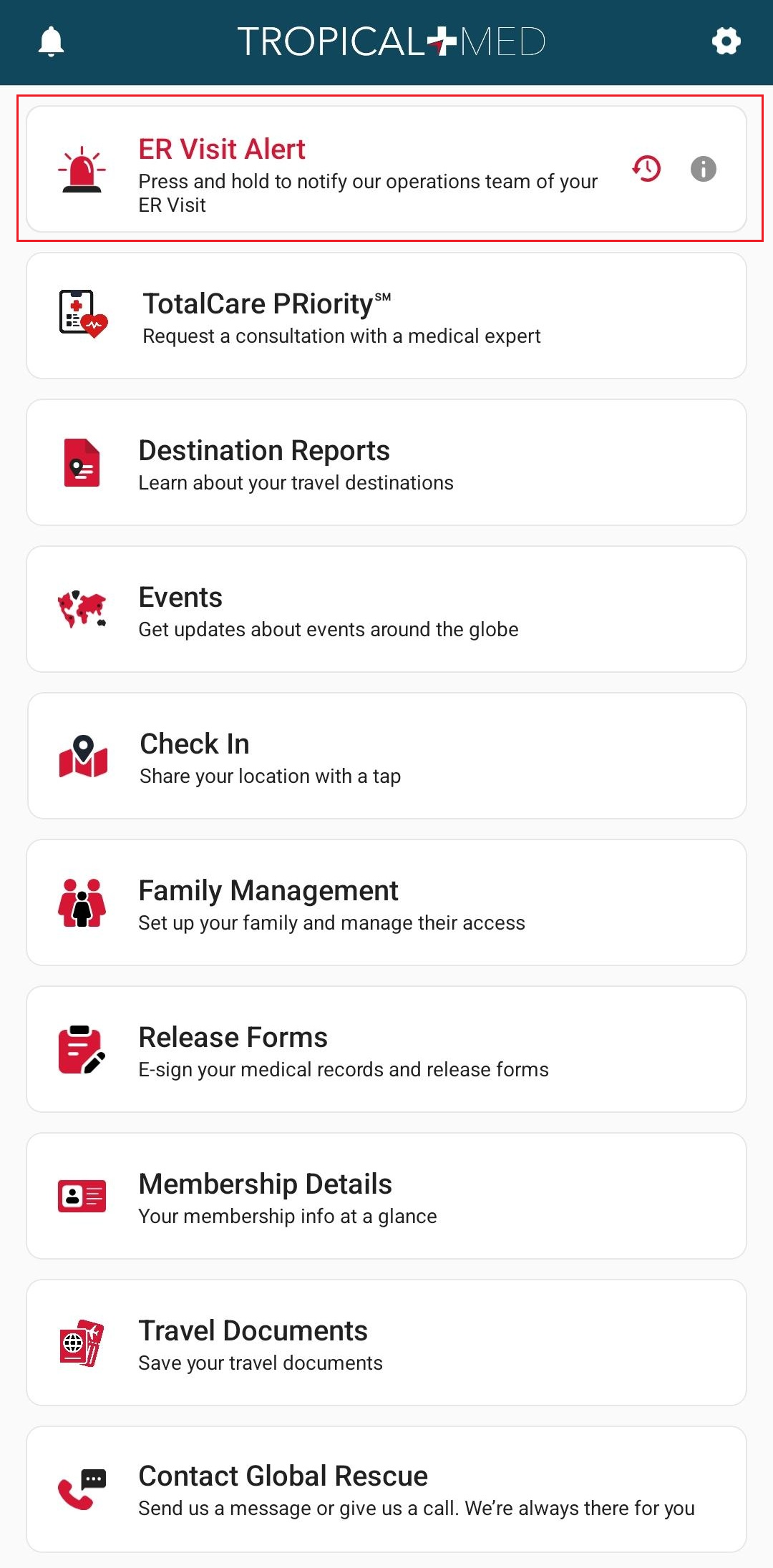
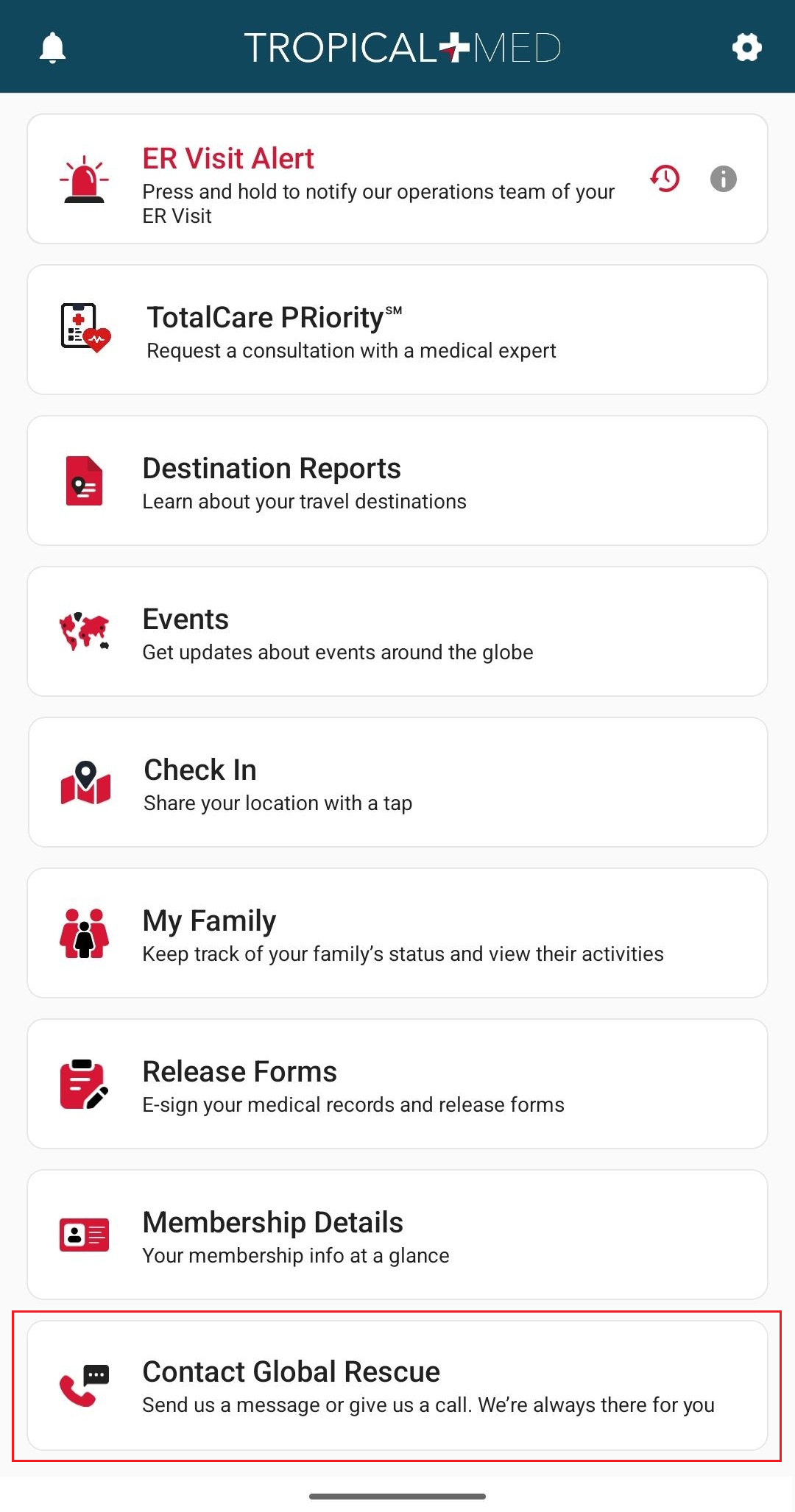
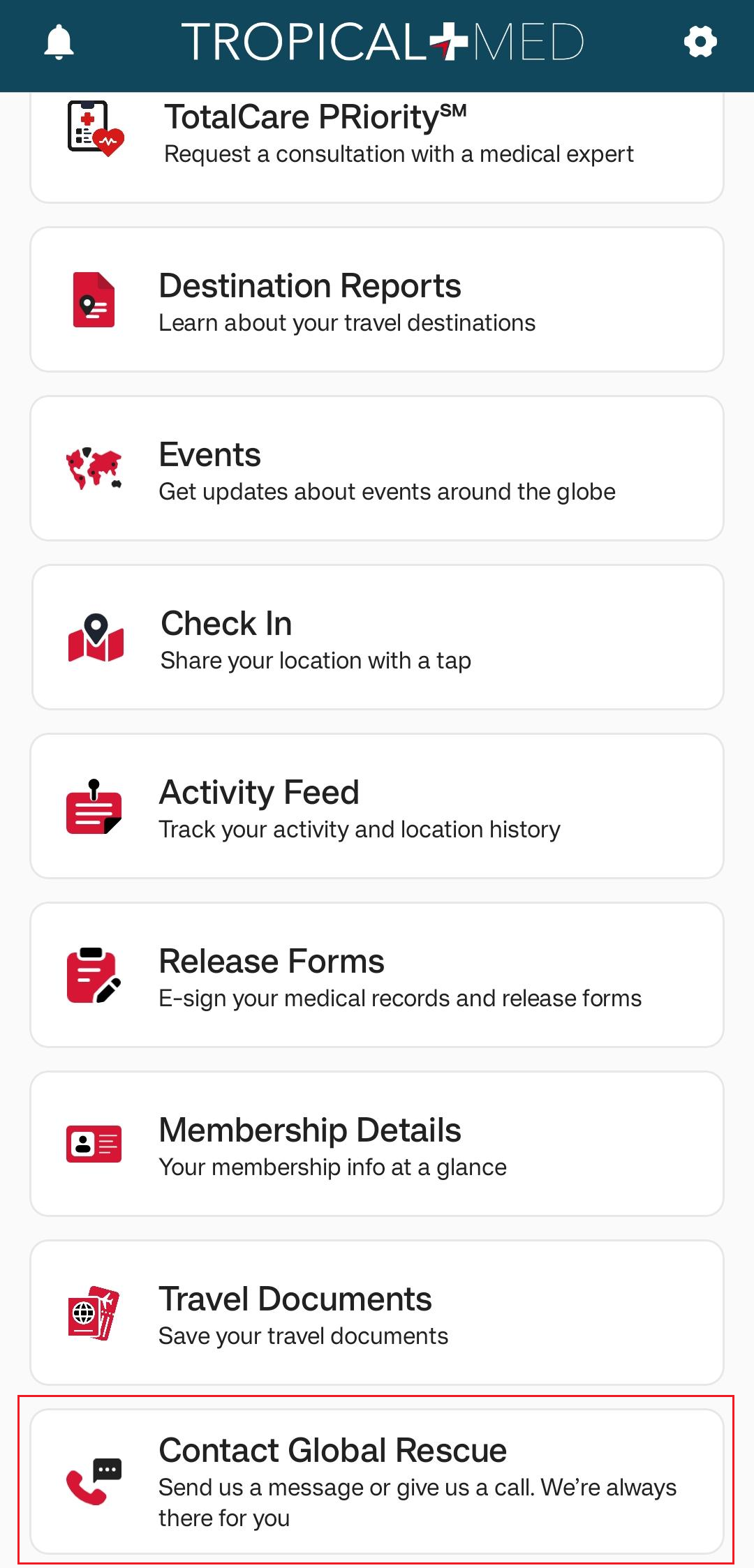
This is the screen you will find yourself in after logging in.

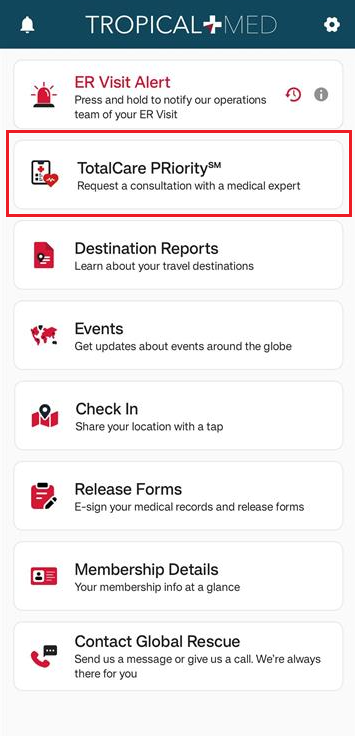
You can access any of My Global Rescue’s main features from this screen. These are:

ER Visit Alert

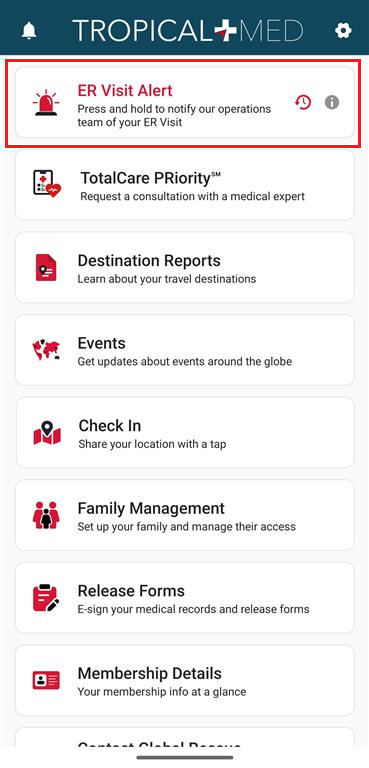
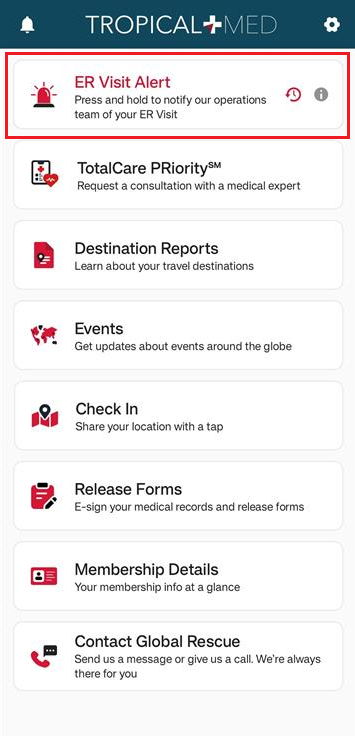
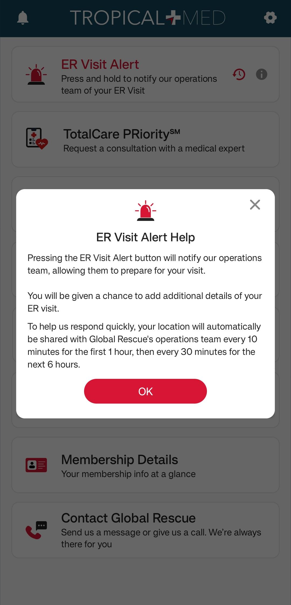
The ‘ER Visit Alert’ feature allows you to inform the Global Rescue operations team that you intend to visit the ER for an emergency. This will ensure that there will be a doctor available and ready to handle your situation.

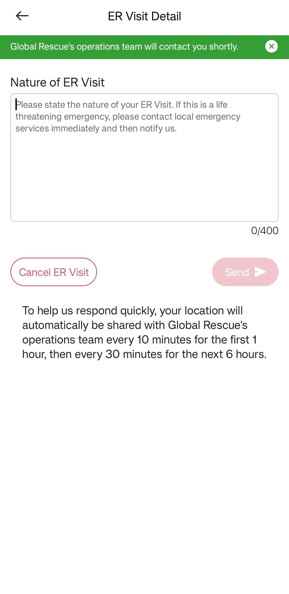
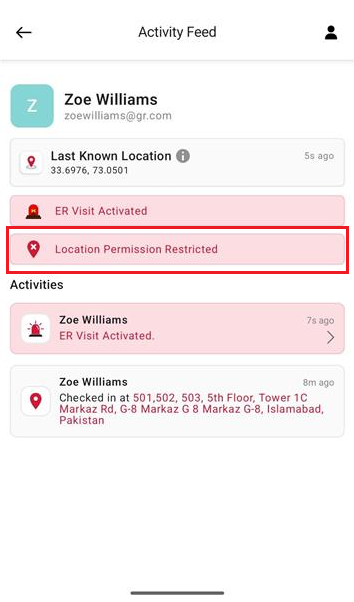
To activate an ER visit alert, tap and hold the ‘ER Visit Alert’ tab for three seconds. This will notify our team, who will respond accordingly. Please note that during an active ER Visit, My Global Rescue will automatically send your current location to Global Rescue. The purpose of this is to keep track of your travel to and arrival at the hospital.

Once you have activated an ER visit alert, you will be given the option to detail the nature of your emergency by filling in the provided text box and tapping ‘Send’. Any additional information you provide in this optional step will assist Global Rescue in providing you with the exact help you need.

You may view any of the above information in-app at any time by tapping the ‘info’ icon on the right end of the ‘ER Visit Alert’ tab.

TotalCare PRioritySM

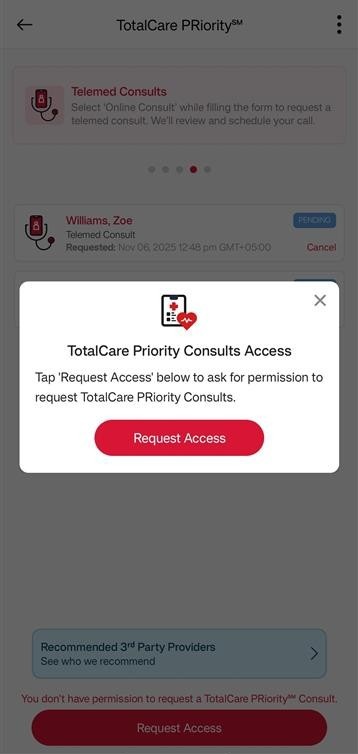
TotalCare PRioritySM Consults are medical consultations with licensed experts, through hospital visits or over the phone or through a video call. This is not an emergency service—if you are experiencing a medical emergency, contact the nearest hospital immediately.

The primary member or a spouse with family management access can request consults for themselves or dependents.

To request a consult, dependents without access can ask the primary member or their spouse to grant them access.

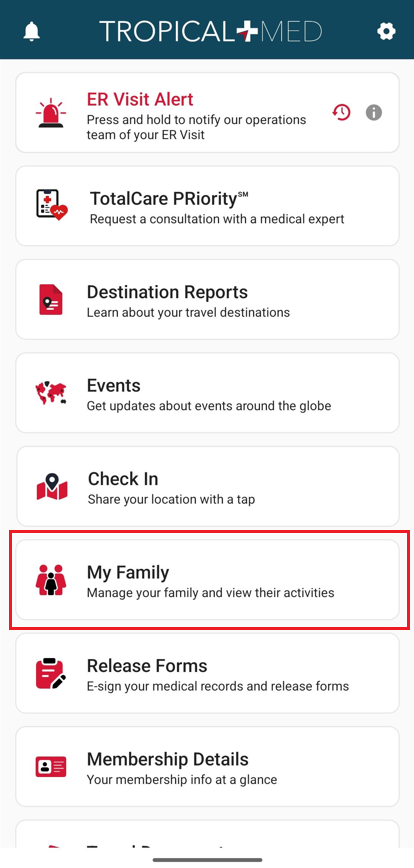
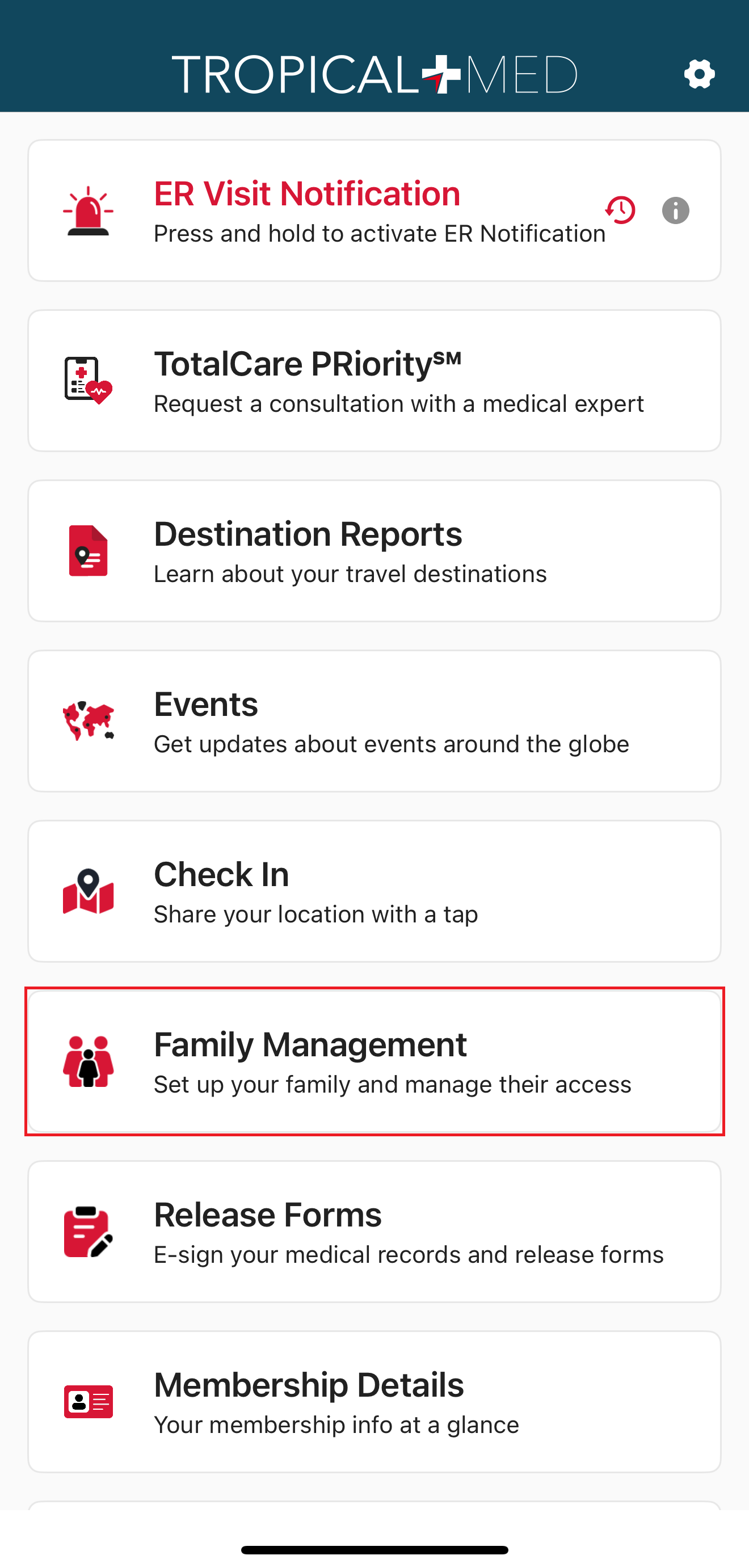
Access to TotalCare PRiority consults can be managed through the Family Management menu item on the home screen visible only to primary member or a spouse with family management.

Tapping ‘Family Management’ will redirect you to Member Services Portal in your mobile browser, where you can manage access settings for your family members.

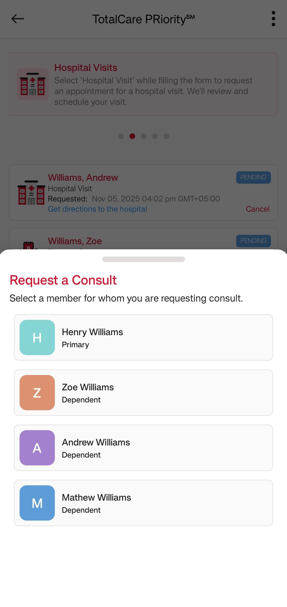
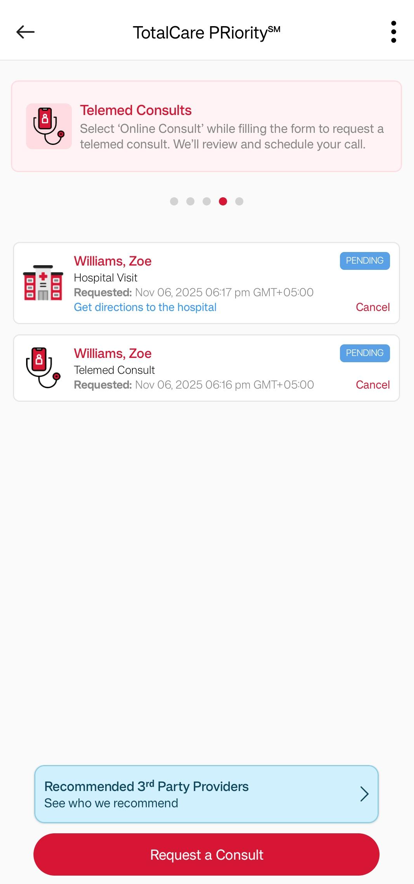
To begin with an hospital visit or telemed consult, tap ‘Request a Consult’. If asked, select the family member. Then, choose the consult type, fill out the required medical vitals and submit the form. The request will show as ‘Pending’.

Once reviewed, Global Rescue will schedule the consult. The status will update to ‘Scheduled’ and display the appointment time.

Make sure you’re able to join video calls using Zoom. You can test your audio and video by tapping the three-dot menu on the top right corner of the screen and then tapping ‘Make Test Call’.

To begin a telemed consult, tap ‘Join’ at the scheduled time to launch the session via Zoom.

For hospital visit consult, tap on ‘Get directions to the hospital’ to navigate to the hospital from your current location.

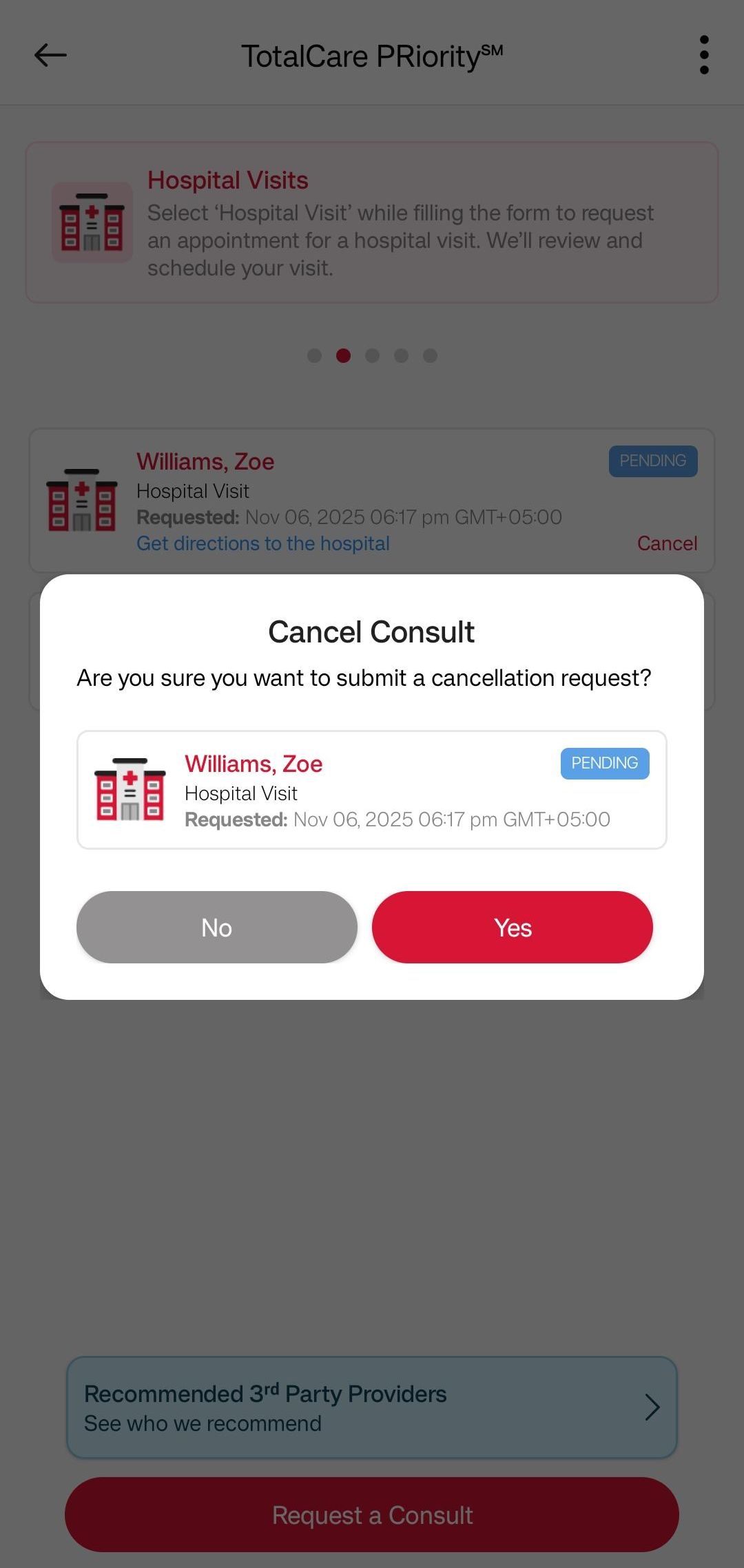
To send a cancellation request for a consult, simply tap ‘Cancel’ next to the consult you wish to cancel. Once your request is approved the consult will be removed from this screen.

You can view our recommended third-party providers by tapping on the ‘Recommended 3rd Party Providers’. Use this screen to easily locate and get in touch with a service provider that meets your needs.

Destination Reports

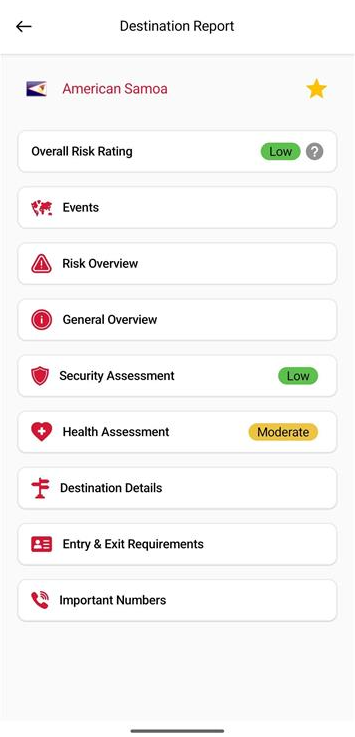
A ‘Destination Report’ is a comprehensive profile of a selected country. The report is summarized with an ‘Overall Risk Rating’, which lets you know at a glance how dangerous travel to any particular destination may be. There are four levels of risk: Low, Moderate, High, and Extreme, with Low being the safest and Extreme being the most dangerous.

Please ensure that you go through the entire destination report of any country before traveling to it. It has been crafted by Global Rescue’s experts to ensure your travel and stay goes as smoothly as possible. There is no such thing as being over prepared.

To get started, tap ‘Destination Report’ on the main menu.

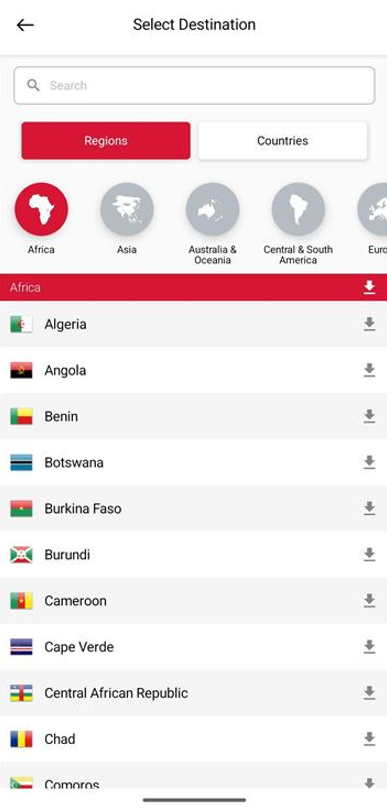
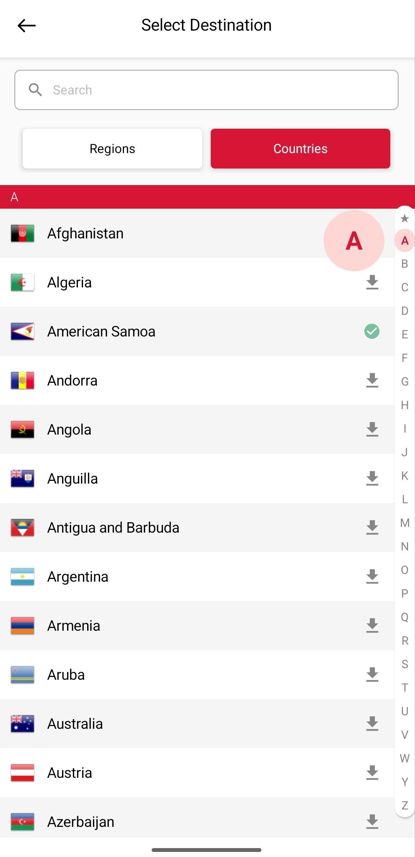
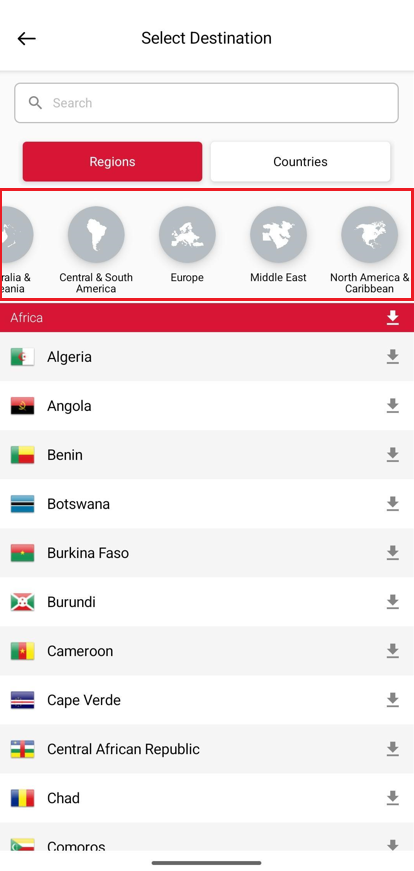
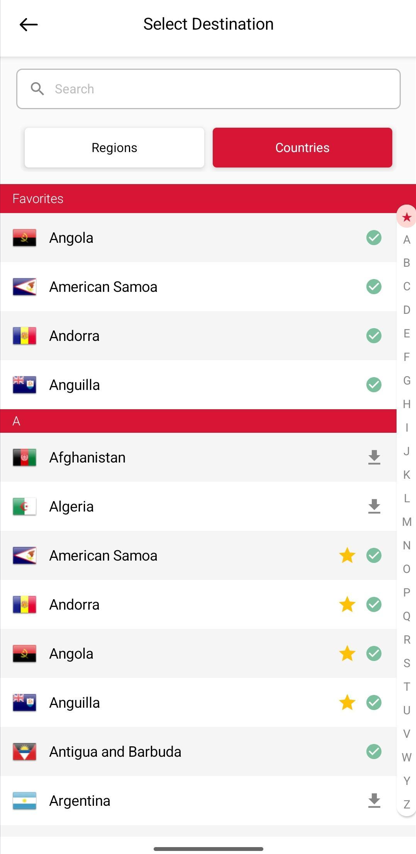
Tapping this will open a list of countries with available destination reports. There are two ways to list these countries:

  • Grouped by Region
  • Alphabetical Order

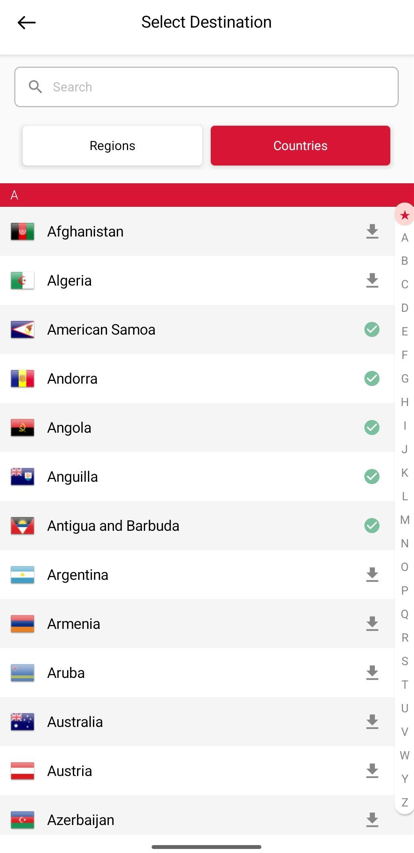
Tap ‘Regions’ or ‘Countries’ to switch between the two.

Tap on a country to view that country’s destination report. The app also downloads the destination report so that you can view it later, even without an internet connection. Downloaded destination reports will have a green ‘tick’ icon.

The Overall Risk Rating is assigned on the basis of a variety of factors; these details may be examined in the various sections of the Destination Report. Each of these sections will be displayed in a new screen. For an explanation of the different possible ratings, tap on the question mark to the next to the ‘Overall Risk Rating’.

‘Events’ will show you any active events that are happening, or will happen, in the country. Please see the ‘Events’ section for more details.

‘Risk Overview’ presents you with more details regarding the ‘Overall Risk Rating’ assigned to the country.

‘General Overview’ will tell you more about the country itself; its history, geography, spoken languages, and so on.

‘Security Assessment’ contains a detailed breakthrough of potential security issues that may need to be factored in any travel, such as terrorism, civil unrest, crime rate, and so on. This section ends with advice composed by Global Rescue’s experts to help you stay safe during your stay.

‘Health Assessment’ contains a detailed breakthrough of potential health risks that may be faced upon travel to the country. A list of immunizations is provided: those required for entry as well as those recommended based on prevalent diseases. Following these guidelines will help avoid any potential medical emergencies. This section also describes the level of medical facilities and services available so you can prepare accordingly.

‘Destination Details’ includes miscellaneous useful information including, but not limited to, accepted currencies, time zone, banking hours, holidays, voltage information, and airports in the country.

‘Entry and Exit Requirements’ includes valuable information about passport/visa validity and acceptability. Import and export restrictions are also mentioned, which should be read thoroughly to avoid unnecessary problems with the local authorities.

‘Important Numbers’ contains the contact numbers of emergency services in the country, as well as those of various important locations/services for travelers such as embassies or other diplomatic missions.

Events

From the Events screen, you can view information on events happening around the world, as published by our intelligence experts at Global Rescue.

You can filter the list of events according to event severity, category and country, by tapping the funnel shape icon highlighted in the image below.

You can select various filters to specify the kind of events you want to see from here. For example, the below image is an example of a filter that will show ‘Infrastructure’ and/or ‘Health’ related events occurring in Qatar, United States or Pakistan of ‘Extreme’ and/or ‘High’ severity. Tapping ‘Apply’ will show only those events that match the criteria selected, as shown in the following image.

Tapping on an event opens the details of that event:

  • Severity, category, and impacted location(s) of the event
  • Summary of the event
  • Global Rescue’s analysis and advice for the event

Tap ‘Analysis’ to see Global Rescue’s expert analysis of the event, or tap ‘Advice’ to see Global Rescue’s advice on how to minimize the risks the event may pose to you.

Tab on the ‘Info’ icon in the upper right corner of the screen to for an explanation of what the different event severities and categories mean.

Check In

The ‘Check In’ feature allows you to share your location with Global Rescue. This creates a ‘location history,’ making you traceable during your travels.

To send a check in, tap on the ‘Check In’ tab on the Home Screen. The Global Rescue App will fetch your GPS coordinates and display them on a map on a new screen.

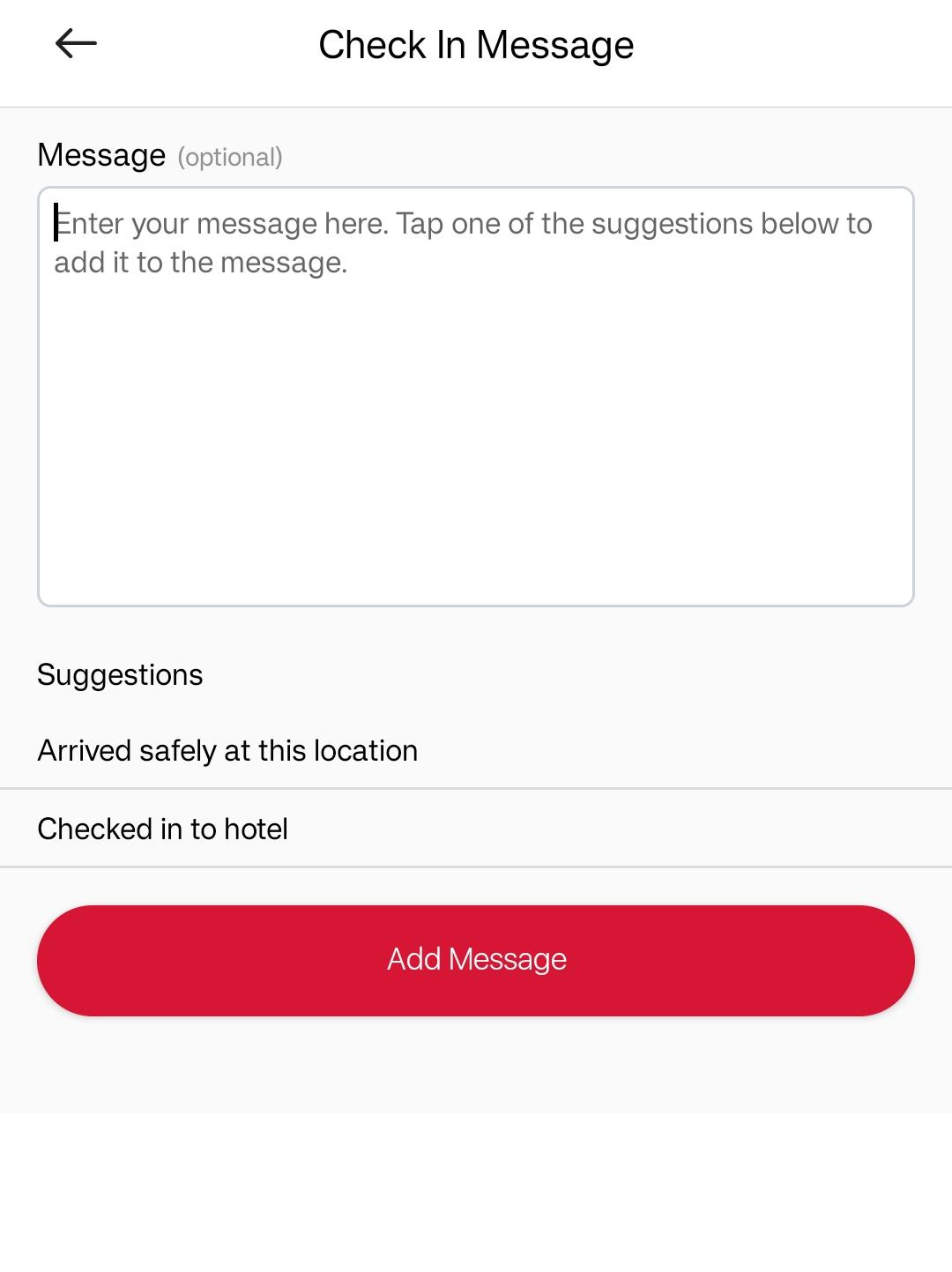
On this screen, you can also enter a message by tapping ‘Optional Message.’ This will take you to a new screen where you can add a message along with your check in. You can use one of the preset messages provided to help compose your message; tap on them to insert them into your message. You may insert these at any point and use as many of them as you like. When done, tap ‘Add Message’ to save the message as part of your check in. You can edit this message by tapping the ‘pencil’ icon to the right of your message. To cancel message input, tap the ‘back’ arrow in the upper left corner of the screen.

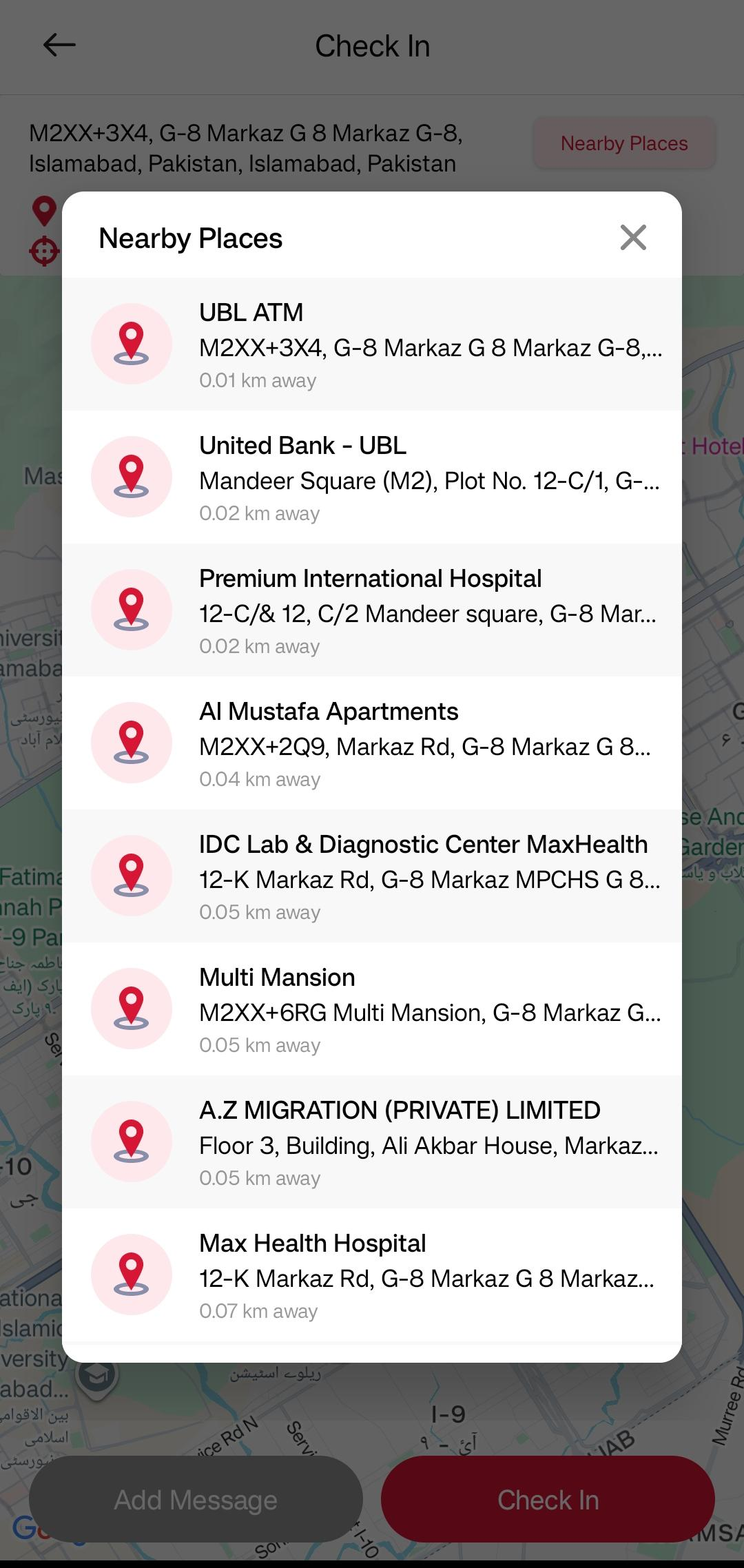
The Check In screen also gives you the option to choose a nearby point of interest, or a ‘nearby place’, which you would like to be your check in location. Doing so has the advantage of specifying a landmark to make it easier to understand where you may be (or where you intend to be!).

To do so, tap the ‘Nearby Places’ button in the upper right corner of the screen. You will be presented with a number of options, each having a name and address. Also displayed is how far you currently are from the place. Tapping on any of these places will set that as your current location and pan the map accordingly.

Tap the ‘Check In’ button on the bottom of the screen to check in. You’ll be see a confirmation pop-up indicating that your check in was successful, after which you’ll be navigated to the home screen

Family Management

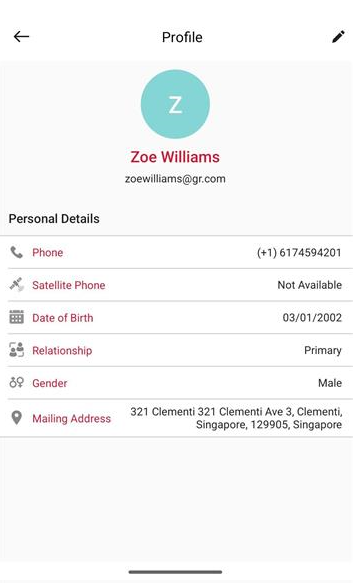
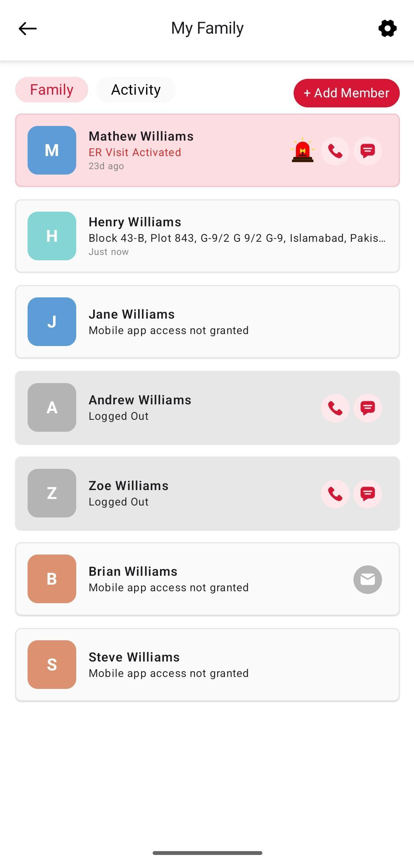
You can manage access settings and add members or update family member’s details by tapping the ‘Family Management’ menu item on the home screen.

Tapping this will redirect you to Member Services Portal in your mobile browser, where you can view your family members and their permissions, update access settings, or add new members.

Release Forms

At times you may be required to sign certain forms by the Global Rescue operations team. You can tap ‘Release Forms’ menu item on the home screen to view and sign forms such as medical or liability releases.

Tapping this opens the Global Rescue self-service portal, where you can view any release forms you’ve signed or are required to sign.

Membership Details

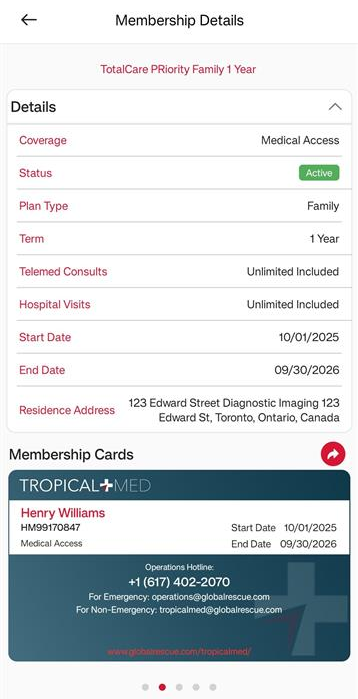
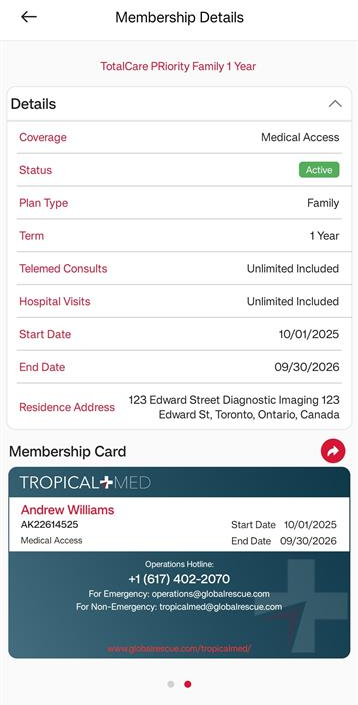
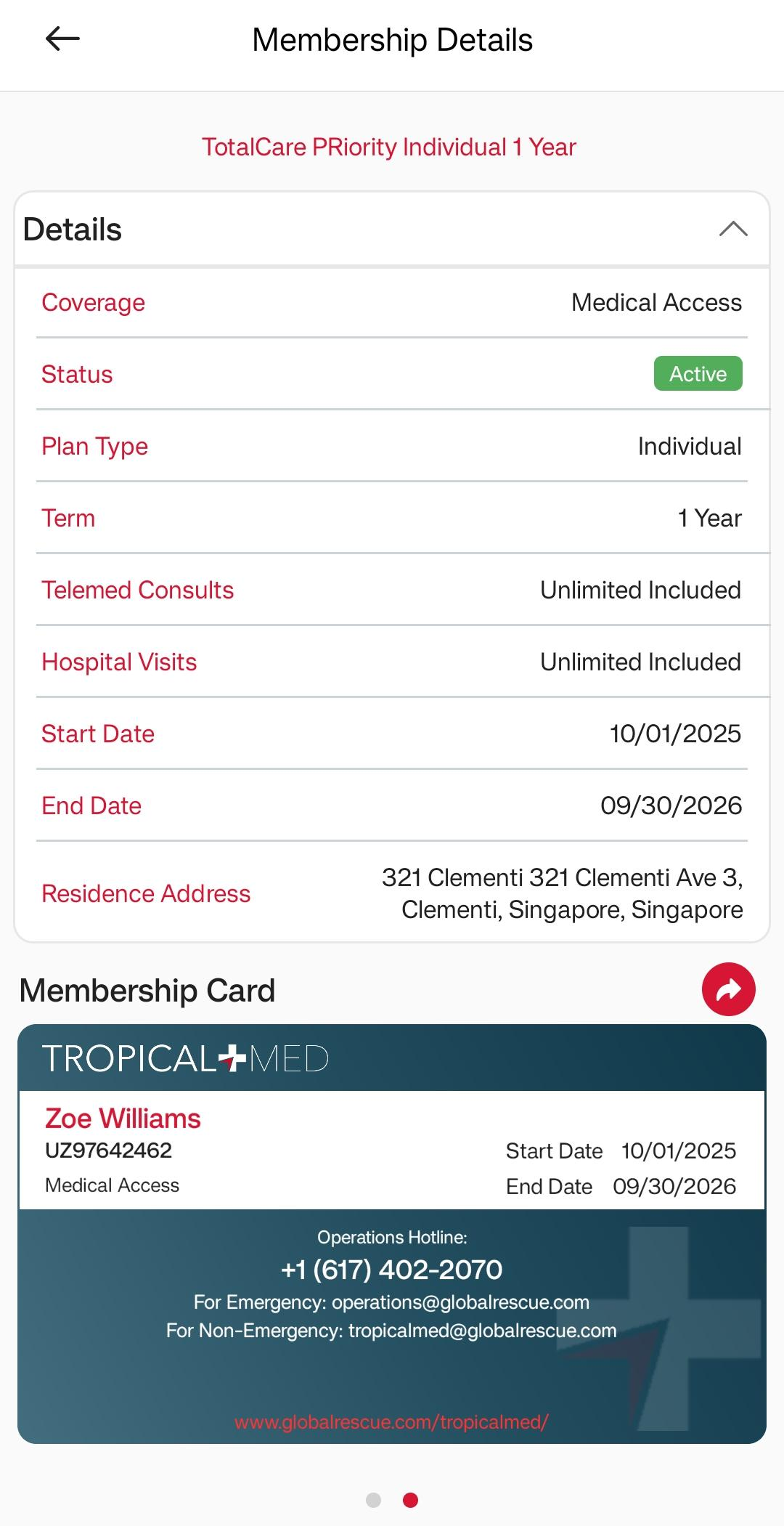
You can view the details of your Tropical Med membership at any time by tapping the ‘Membership Details’ menu item on the home screen.

You can view your membership and membership card from here. You can also share your membership card with other people via different apps on your phone; this will send both front and back images of the card. If you are on an iOS device, you will also see an ‘Add to Wallet’ button that will add the membership card to your Apple Wallet.

You can tap on the number or email addresses on the card to interact with Global Rescue using your phone’s default phone call and email app respectively.

Travel Documents

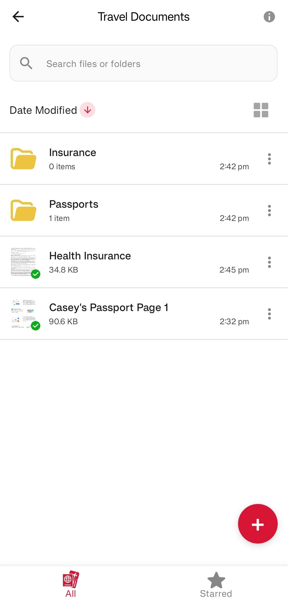
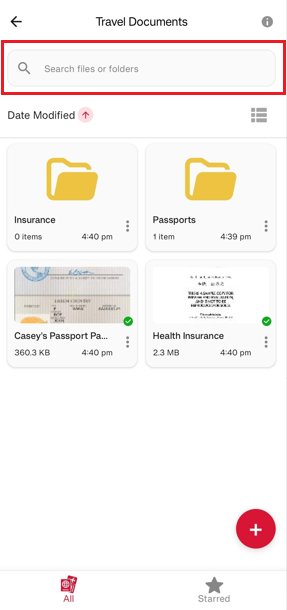
The Travel Documents feature in the Global Rescue mobile app allows members of Global Rescue memberships to upload, create, and organize files securely.
You can store up to 20 documents, with a maximum file size of 5 MB each. Supported formats include PDFs and images.

Within the Travel Documents, you can view all your stored files and folders. Switch between grid or list view for easier visual identification. Use the search box to find a document or folder by name or refine your results by sorting files by Date Modified or Name.

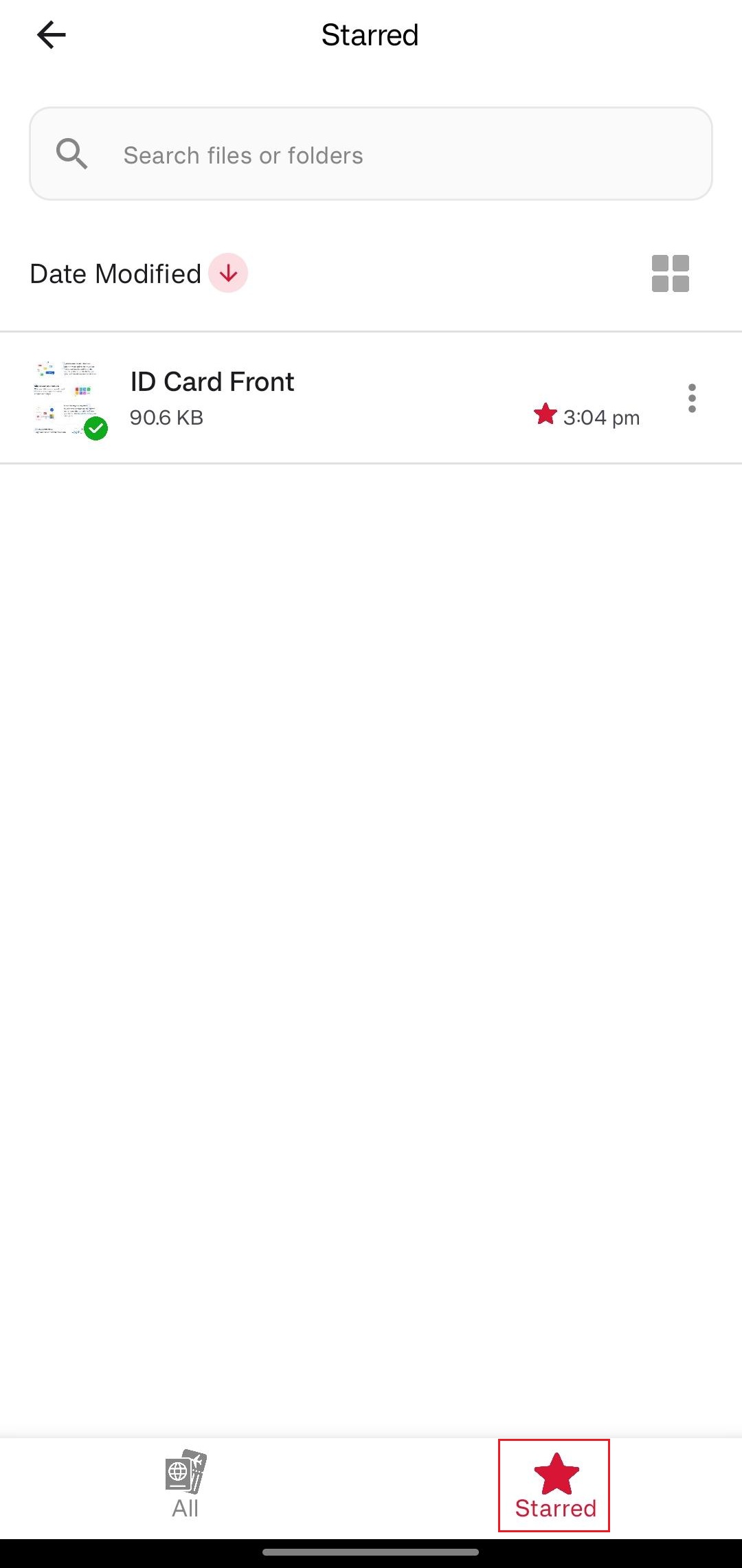
To quickly access important items, mark them as Starred. You can view all starred files and folders anytime by tapping the Starred tab on the bottom navigation bar. To add or remove an item from your starred list, open the three-dot menu next to the file and select ‘Add to starred’ or ‘Remove from starred’.

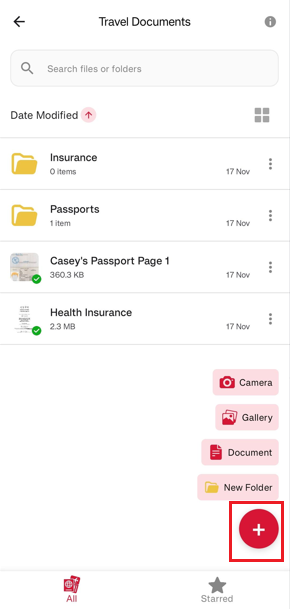
To upload a document, image, or create a new folder, tap the ‘+’ button on the main Travel Documents screen and select from the available options. To view a file, simply tap the uploaded file and it will open in the app.
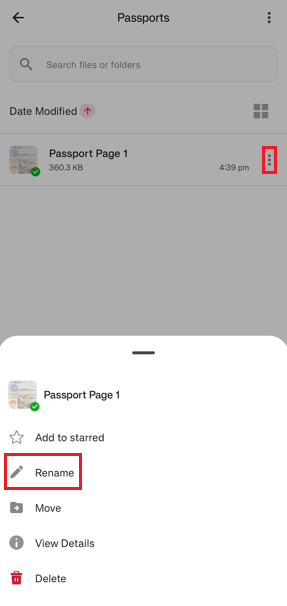
If folders already exist, you can choose a specific folder for your upload. The app defaults to your current folder, but you can also move a document to another folder by tapping the three-dot menu next to a document and selecting ‘Move’.

To rename a file, open the three-dot menu and choose ‘Rename’. Changing a file within the app does not change the file name on your device.

To permanently remove a file or folder, select ‘Delete’ from the menu. Once deleted, it cannot be recovered.

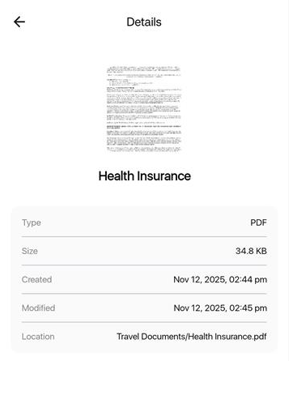
You can also view document or folder details through the same menu by selecting ‘View Details’.

Note that access to your stored travel documents is available only while your Global Rescue membership is active. Once your membership expires, all stored files will be permanently deleted and cannot be recovered.

Contact Global Rescue

‘Contact Global Rescue’ allows you to get in touch with a member of the Global Rescue team for any assistance, queries related to your membership, or other comments you may have.

Sending a message is as easy as entering your text into the input field and tapping ‘Send.’ You may also attach images, photos from your camera, or PDF files.
A quick response is guaranteed through chat, but you can also call Global Rescue using the provided phone number. Tap on the number displayed against ‘Call Us’ to open your device’s default ‘Phone’ app with the number already entered.